
WhatsApp & Follow Up
Customize follow-up templates
Use this manual if you want to look up or modify an WhatsApp template from the Leadgains follow-up yourself. You see which messages exist and where you can find them in the WhatsApp Templates Library and what to look for for approval and results.
Brief overview
Leadgains uses fixed WhatsApp templates for new leads, appointment reminders, no-shows, cancellations and database reactivation, among other things. These templates have been tested for clarity, timing and lead responses. You open the templates directly via the WhatsApp Templates Library.
Use the template name from the table or from the accompanying overview article.
Leave variables, buttons, and message intent intact.
A customized WhatsApp template must be reapproved by Meta.
First decide whether adjustment is wise
The default templates remain the recommended version. They are written to be clear, short and accessible, and they match the timing of the Leadgains flows.
We recommend only making changes when there is a clear reason, for example a different tone of voice, a different action or a local agreement that really needs to be included in the message. In the future, we would like to evaluate changes via split tests, so that we can see whether an adjusted text actually performs better.
Which templates can you look up?
The table below will help you find the right group. Use the column Check exact messages when you first want to see which text will be sent today. Those detail articles show the message texts, timing, variables and buttons.
| Group | When will this be sent? | Template names in the library | Check exact messages |
|---|---|---|---|
| New lead follow-up | With a new lead and then with no response. | incoming_lead_whatsapp_or_call, fu_31_min_no_answer, fu_contact_form_d1, fu_contact_form_d2, fu_contact_form_d3 | View the lead follow-up messages |
| Appointment reminders | Approximately 48 hours, 24 hours and 1 hour for a confirmed appointment. | 48_hr_reminders, 24_hr_reminders and 1hr_reminders | View the 48h, 24h and 1h messages |
| No show follow up | When someone doesn't show up for an appointment. | no_show_direct, no_show_d1, no_show_d2, no_show_d3 | View the no-show messages |
| Cancel follow up | When someone cancels an appointment. | cancel_d1, cancel_d2, cancel_d3 | View the cancel messages |
| Database reactivation start message | For old leads, ex-members or dormant contacts who are approached again with a 10-day pass or DBR offer. | dbr_button, dbr_milon_new_concept_v2 and dbr_scarcity. | View the DBR start messages |
| 10-day pass follow-up | After someone shows interest in the database reactivation, but has not yet booked an appointment. | fu_d1_7_10_14_30, fu_d2_10 and fu_d3_10. The 31-minute check is not available as a separate template in the library; please report such a change to Leadgains. | View the 10-day pass follow-up messages |
Step-by-step plan
Step 1 - Open the WhatsApp Templates Library
Open directly the WhatsApp Templates Library in Leadgains. First check whether you are in the correct club account. Adjusting a template in the wrong account can cause the wrong club to receive a changed message.
Step 2 - Search for the template by name
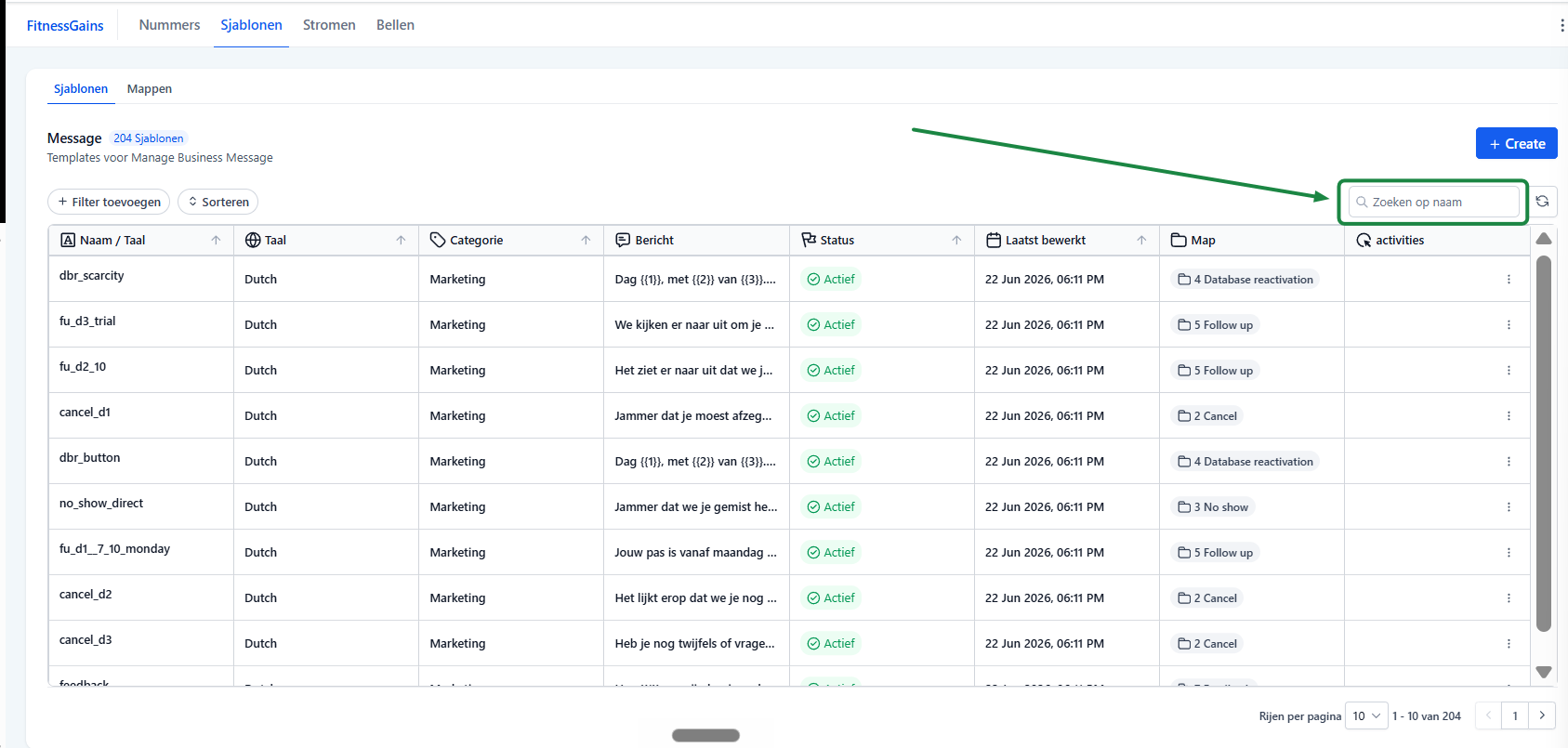
Use the search bar at the top right to search for the template name, for example cancel_d1, no_show_d2 or dbr_button. Don't know how to work in this screen yet? Follow first Create and use WhatsApp template.
Step 3 - Open Template Edit
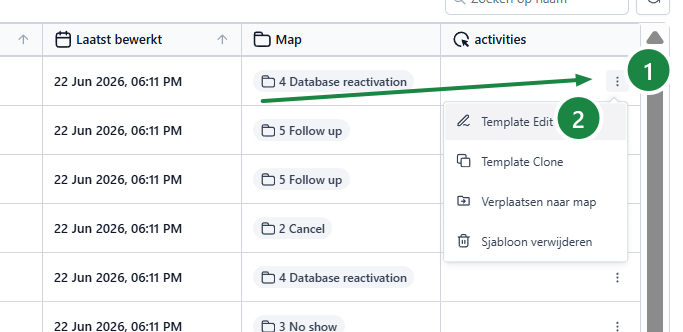
Click on the three dots to the right of the correct template. Then choose Template Edit. Then the window opens in which you can adjust the existing template.
Step 4 - Only edit the message you really want to change
The editing window works almost the same as with a new template, but the text, variables and buttons are already filled in. Only edit the text you really want to change. Leave the timing, workflow, appointment statuses and stop rules unchanged; these are system settings and not an ordinary template copy.
Use the steps from Create and use WhatsApp template as a reference for variables, sample values, category and preview. Click at the bottom Update when the modified text and preview are correct.
Step 5 - Save the variables and buttons correctly
Leave variables in order and enter sample values when Leadgains prompts. Do not remove a booking button if the message is intended to let someone choose a time themselves. A missing variable or button can cause the message to not be approved or not work properly in the flow.
Step 6 - Resubmit the template
After saving, the WhatsApp template will go back to Meta review. Only use the modified version when the status is active. As long as the template runs out Pending, In Review or Rejected is not yet ready for use.
Step 7 - Check that the correct version is being used
If you edit an existing template, check whether the new content is visible in the template overview after approval. If you create a new template with a new name, it will not automatically be used in all flows.
Report any changes to Leadgains, even if you have only changed text. Then we can check whether the change has consequences for the rest of the flow, such as the correct template choice, variables, buttons, timing, stop rules and reporting.
Approval and quality risk
WhatsApp templates are reviewed by Meta. A minor text change can be approved quickly, but review can also take longer or lead to rejection. Links, promises, promotions, sensitive words and unclear variables in particular can cause additional scrutiny.
| Status | What does this mean? | What are you doing? |
|---|---|---|
| Pending / In Review | Meta assesses the template. | Wait. Do not use the template as a final version yet. |
| Active | The template has been approved. | Check the content and use the correct version in the flow. |
| Rejected | Meta has rejected the template. | Adjust text, variables, sample values or links and resubmit. |
| Low Quality / Paused | There is negative feedback or low quality. | Stop scaling up and reconsider target group, timing and text. |
Related help docs
Step-by-step explanation of the template screen, variables, sample values and Meta review.
Overview of the standard messages for new leads.
Messages that leave after a missed appointment.
DBR flow, conditions, calculator and WhatsApp message examples.
Frequently asked questions
The standard messages remain the recommended version. If you want to deviate, you can adjust the template yourself or prepare a new version. Please note that the effect on responses and bookings is not guaranteed in advance.
Yes. Once the contents of an WhatsApp template change, the modified version must be re-evaluated by Meta before you can use it reliably.
Yes, but then still check variables, buttons, category, language and status. Even small changes can affect approval or performance.
Then you can go back to the standard text or test a new version. For larger changes, it is better to work with split testing later, so that you can measure the difference in responses and agreements.
Not via the template itself. Timing is in the follow-up flow. Discuss timing changes separately because they affect multiple steps, stop rules, and reporting.