
Create and use WhatsApp template
Use this SOP to correctly create an WhatsApp template via Create Template, choose the correct category and variables, follow the Meta review and only then use the template in conversations or workflows.
Brief overview
WhatsApp templates are pre-approved messages that you use when you want to proactively reach a customer, such as outside the 24-hour window after the last incoming WhatsApp message.
You create a new template via Settings, WhatsApp, Templates, Create Template and Blank Template. Then enter name, category, language, message content, variables and sample values.
After creating the template goes to Meta review. Only when the template is active can you use it in conversations, campaigns or workflows.
Video explanation
View the walkthrough if you want to see the step-by-step process of creating and managing WhatsApp templates.
This video is in Dutch. Click the gear icon in the video player, turn on Closed Captions and choose English under Caption Language.
How to change subtitle languageSupplies
- An associated WhatsApp channel with permissions to view or create templates.
- The exact template copy and purpose of the message.
- The right category: Marketing, Utility or Authentication.
- The correct language for the template.
- Header, footer and any buttons if you want to use them.
- Sample values for each variable so that the preview and Meta review show what the message looks like for a real contact.
Step-by-step plan
Step 1 - Open WhatsApp Templates
Open directly WhatsApp Templates in app.ldgns.be, or go to the correct account Settings, open WhatsApp and click Templates. First check that you are working in the correct account before creating a template or reviewing existing templates.
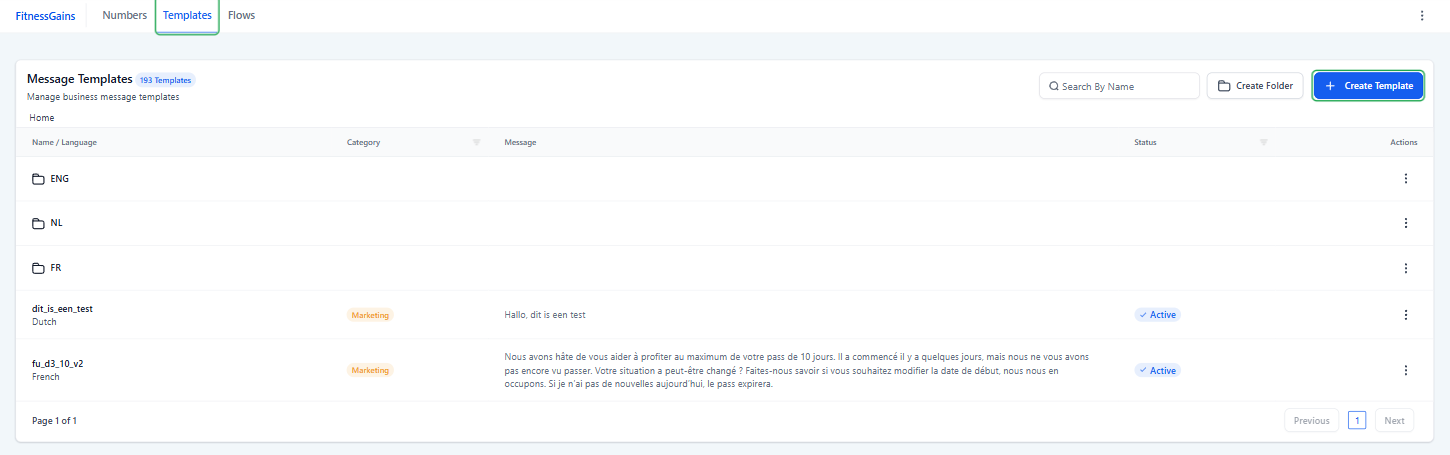
Step 2 - Start with Create Template
Click at Templates on Create Template and then choose Blank Template. This way you start from an empty template and determine the name, category, language and content yourself.

Step 3 - Choose template name, category and language
First choose a clear template name. Template names use underscores instead of spaces, for example trial lesson_confirmation_v2 or summeraction_10_dayspas_v3. In case of substantive changes, it is better to create a new version than to overwrite an old template in an unclear manner.
Then choose the category. Marketing is the general category for messages that you send to customers with a commercial or promotional purpose, such as promotions, campaigns and follow-up regarding an offer.
Utility use for practical, transactional messages. Consider an appointment reminder for tomorrow at a certain time, a reservation confirmation or an update that an order is ready or being shipped. Authentication only use it for verification codes.
Also select the correct language before submitting the template. The selected category influences the cost per call. Because the price difference between categories can be large, do not choose Marketing as standard when the message is actually Utility.
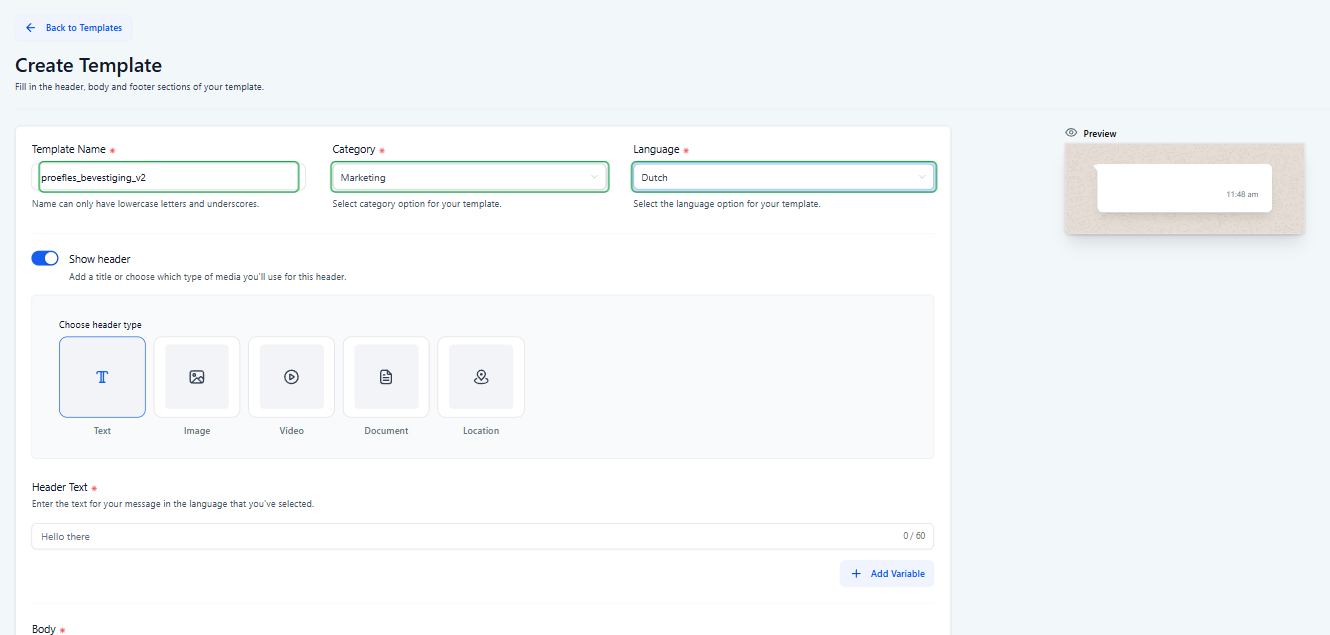
Step 4 - Build the message
Optionally add a header. This can consist of text, an image, video, document or location. The header is especially useful when the message needs visual or additional context.
In the body, write the actual message the customer will receive. Keep the text clear, concrete and appropriate to the chosen category.
Use variables when you want to enter customer information, such as the contact's first name, the appointment time or the location name. For example, you can choose the first name of the contact via the variables icon. The variables must be in order: {{1}}, {{2}}, {{3}}. Don't skip songs.
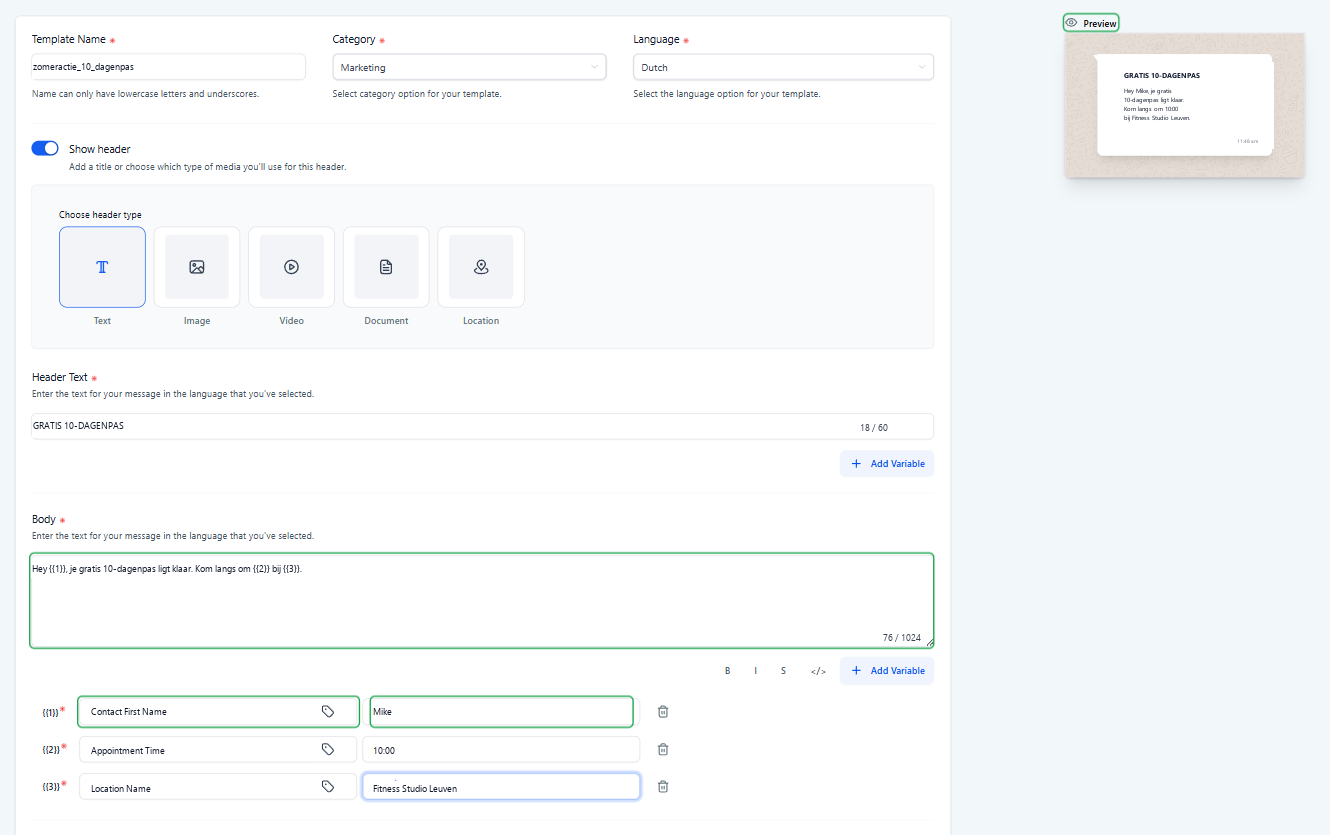
Then enter the correct custom variable and sample value for each variable at the bottom. In this example {{1}} Contact First Name, {{2}} Appointment Time and {{3}} LocationName. This means that you can see on the right in the preview what the entire message looks like when the variables have been filled in.
Step 5 - Click Create and wait for Meta review
Click Create when name, category, language, header, body, variables, sample values, footer, buttons and preview are correct. The template is then sent to Meta for review.
Meta review can sometimes happen almost instantaneously, but can also take days. Count on extra control when you use links, images, videos, documents or words that are examined more closely by Meta. As long as the template In Review or Pending is, you are not yet using them as a final template in a workflow.
| Status | Meaning | Action |
|---|---|---|
| In Review / Pending | Meta assesses the template. | Wait for approval before using the template. |
| Active - Quality Pending | Approved, but still without sufficient quality feedback. | You may send, but monitor the first results. |
| Active - High Quality | Approved and with little negative feedback. | This is the best state for use in flows. |
| Active - Medium Quality | Some negative feedback is coming in. | Check targeting, timing and copy. |
| Active - Low Quality | There is clear negative feedback. | Pause campaigns where necessary and improve the template. |
| Rejected | The template has been rejected. | Adjust variables, policy-sensitive copy or duplication and resubmit. |
| Paused / Disabled | The template cannot or can no longer be sent reliably. | Don't use them in workflows; make an improved version. |
Step 6 - Find and manage the template
After creating the template, you can find it via the search function in the template overview. A new template can be used first Pending such as a test template that is still awaiting Meta review.
You can adjust, clone, delete or place a template in a folder via the row actions. Always check the status before using a template in communications or automations.
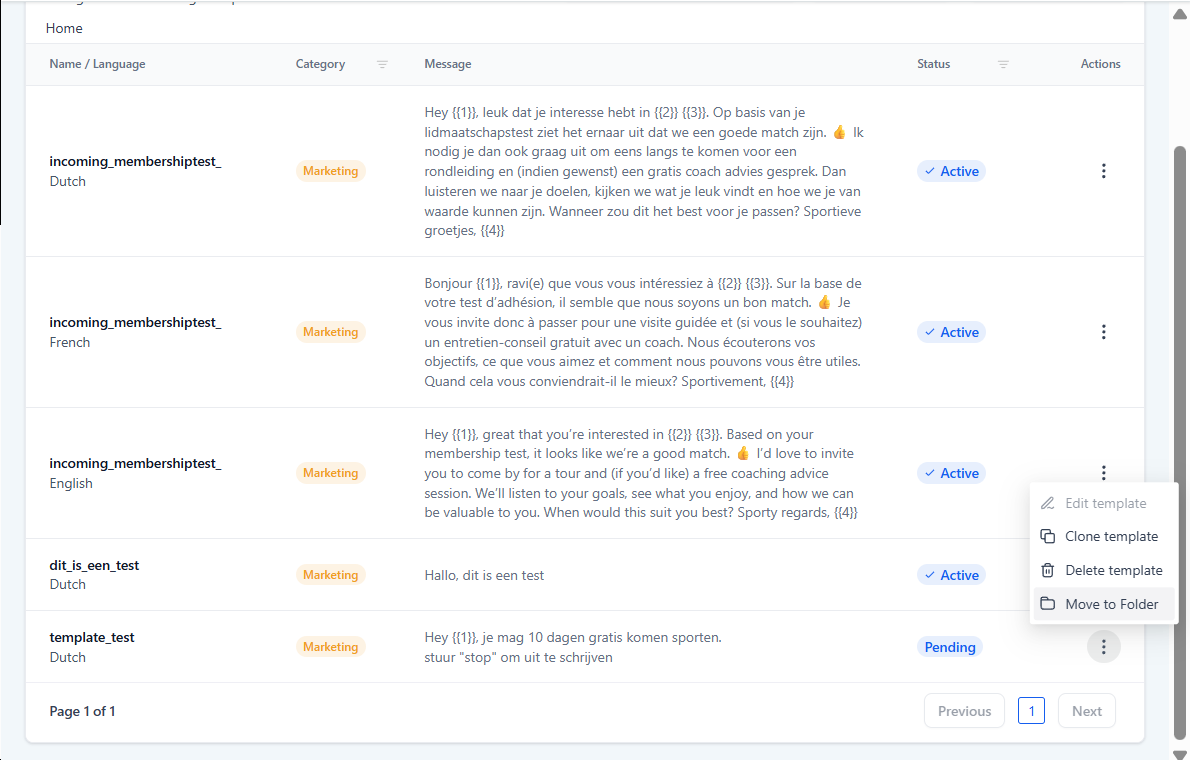
Step 7 - Use only active templates
Only use a template in Conversations, campaigns or workflows when it is active. Under workflows, open the WhatsApp action and select the exact approved template with correct language and category. Leave the WhatsApp number and variable order unchanged if you only want to switch the template.
Step 8 - Monitor status and quality
Check templates regularly for quality changes. Bee Active - Medium Quality or Active - Low Quality you look at the target group, timing, message and unsubscribe option. Bee Paused or Disabled stop using the template and create an improved version.
Common problems
Templates are not continuously synced from Meta after the initial WhatsApp onboarding. Recreate the template in Leadgains.
Choose Marketing for promotions, promotions and general customer follow-up around an offer. Choose Utility for practical updates such as appointment reminders, order information or reservation confirmations. Use Authentication only for verification codes.
No. Use underscores instead of spaces, for example intake_reminder_24h or summer promotion_10_day pass.
Enter a sample value for each variable. The preview should show what the message looks like for a real contact, for example with a first name or appointment time.
Verify that variables are correct and consecutive, that the text is not too similar to an existing template, and that the content fits within WhatsApp policy. Then submit an amended version.
Meta review can be completed quickly, but can also take longer if you use links, images, documents or policy-sensitive words. Wait until the status is active before using the template in flows.
First check language, category and status. Search for a short part of the template name. If it is still missing, wait a moment after approval and check again.
In the template overview you can adjust, clone, delete or place a template in a folder. When making adjustments, always check whether the template is already used in workflows.
Verify that the action uses an active WhatsApp template. Free text or snippets only work reliably within an open service conversation.
That usually points to negative feedback or low engagement. Pause sensitive campaigns, improve the copy and use a new approved version.