
Support
Report problem with Report Error
Quickly report what goes wrong from Conversations. Report Error automatically includes the validated club, conversation and contact.
Brief overview
Use Report Error when you notice something wrong in Conversations in app.ldgns.be. Examples include an incorrect bot reply, a wrong or missing appointment, or a conversation where the system behaves differently than expected.
The button opens the Leadgains form in the same screen. The club, the conversation and the contact are checked server-side and filled in automatically. Only when you open the public form separately, you paste the full URL of the conversation as manual fallback.
After sending, the message ends up in the error reporting system. The AI does the initial analysis and a human colleague takes further action to solve the problem as quickly as possible.
Video explanation
Watch the walkthrough to see where the button is and how to paste a screenshot directly into the form. The video may still show the manual fallback with a copied URL; the current Report Error button fills in that link automatically.
This video is in Dutch. Click the gear icon in the video player, turn on Closed Captions and choose English under Caption Language.
How to change subtitle languageStep-by-step plan
Step 1 - Open the appropriate conversation and click Report Error
Open the conversation where you see the problem via Conversations. Check that you are viewing the correct contact and use the action bar at the top of the open conversation. It contains the Leadgains buttons AI OFF, AI ON, Remove Follow Up and Report Error.
Click Report Error. Do not use GoHighLevel's standard feedback drawer; it is for GHL product feedback and does not create a Leadgains customer report.
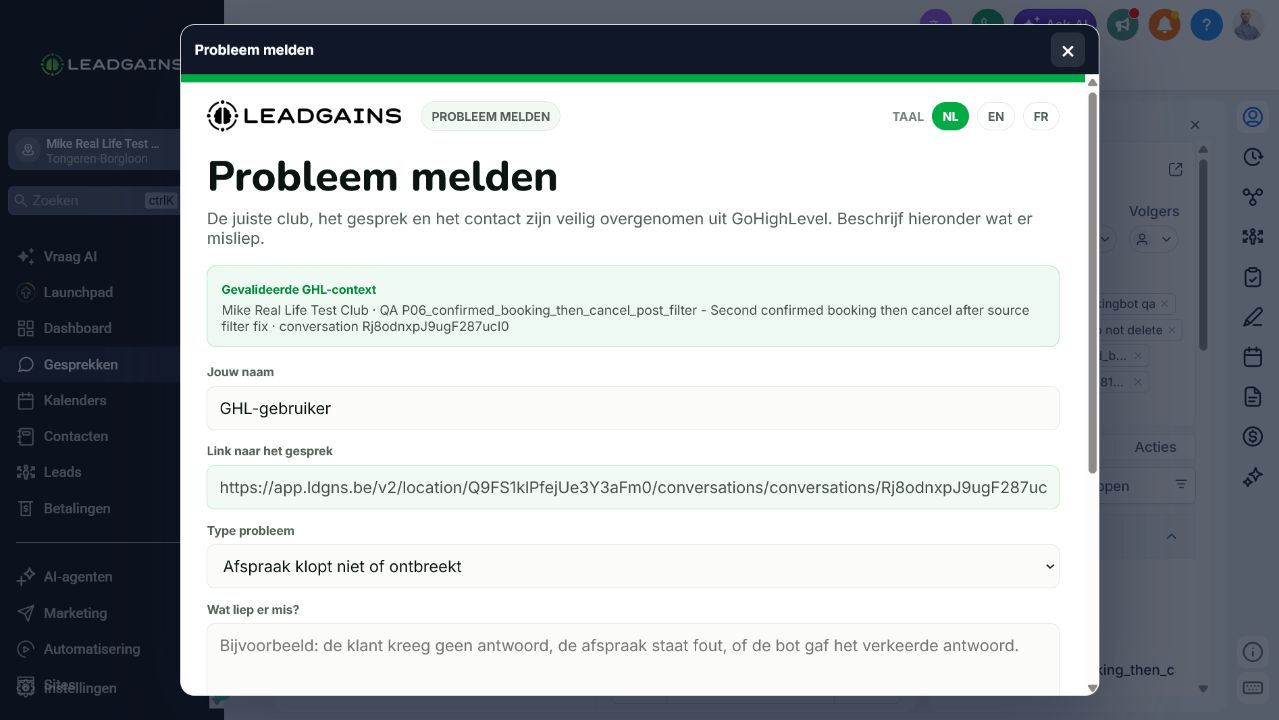
Step 2 - Check the inherited GHL context
The form opens in the same screen. At the top you see the validated GHL context; the conversation link is already filled in and cannot be changed in this flow.
If the contact is incorrect, close the window without sending, open the correct conversation and click Report Error again. Do not share or copy temporary tokens from browser or developer tools.
Step 3 - Check your name and choose the type of problem
Check Your name and adjust it if necessary. The conversation link is already securely populated. Then choose the type of problem that fits best.
Choose the closest option, such as Appointment is wrong or missing, No answer or late response, Wrong bot answer or Something else.
In What went wrong?, briefly describe what you saw. State what you expected and what actually happened—for example, that a message did not arrive, the contact did not receive a reply, the appointment is incorrect or the bot gave the wrong answer.
Step 4 - Always include a screenshot
A picture often says more than 1000 words. Therefore, take a screenshot of the message, the error triangle, the spin icon or the part in which the problem is visible and paste it into the screenshot field.
- Windows: Press Windows + Shift + S, select the problem and paste with Ctrl + V.
- Mac: Press Command + Shift + 4, select the problem and paste with Command + V.
You can also click Or choose files when you have already saved the screenshot.
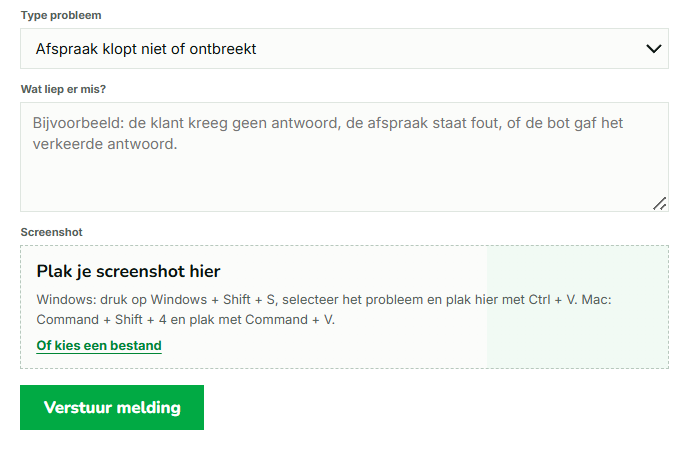
Step 5 - Send the report
Click Send report. The report is added to the error-reporting system. AI immediately performs the initial analysis, after which a colleague follows up with the steps needed to resolve the problem.
Common problems
You do not have to paste a link via the Report Error button: the validated conversation is filled in automatically. If you use the public form directly, paste the full URL from the address bar while the appropriate conversation is open.
Choose the closest type, such as Wrong bot answer, No answer or late response or Something else. Use What went wrong? to explain clearly what you see.
Save the screenshot as a file and click Or choose files. On Windows, you can usually paste immediately with Ctrl + V after Windows + Shift + S.
Check whether you are on the Conversations screen or on the detail page of one contact. The button is in the Leadgains action bar, not in the default GoHighLevel feedback drawer. Refresh the page if the action bar is not fully loaded.
Not for the reporting itself. If the contact still needs an answer in the meantime, handle that conversation separately via the correct channel.
Take a screenshot that shows the incorrect message, appointment, bot response, or system notification. Bring enough context so that it is clear which contact and moment it belongs to.