
Conversations & opportunities
Manage opportunity from Conversations
Use this SOP when you want to check in a conversation where a lead is in the pipeline, create an opportunity or register the outcome of an intake.
Brief overview
An opportunity is the pipeline card of a lead. It shows which phase of the funnel someone is in: from first interest to later follow-up, appointment, intake, no-show, cancellation, trial or becoming a customer.
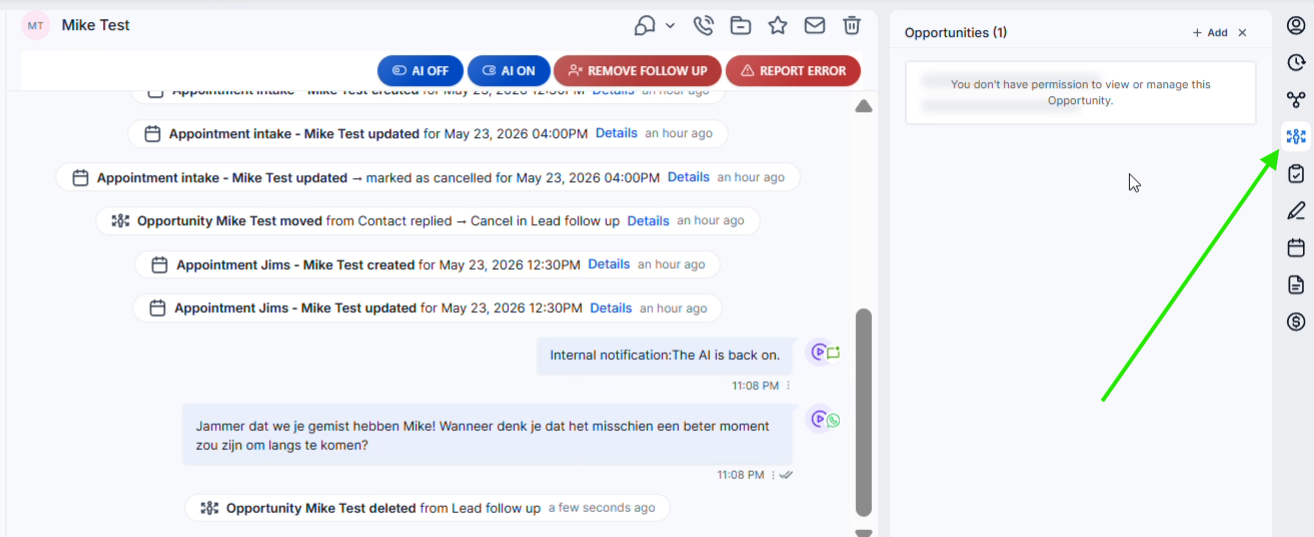
Open the contact via Conversations into app.ldgns.be and right click on the Opportunities icon. From that panel you can open the existing opportunity or via +Add create a new opportunity.
The first pipeline movements usually happen automatically. From the intake onwards it is the club's responsibility to register the correct outcome, for example Won when someone becomes a customer or Lost when someone doesn't start. If an open appointment booking lead no longer responds to follow-up, Leadgains can automatically Abandon put.
Video explanation
Check out the walkthrough to see how the pipeline, stages, and opportunity statuses are related.
This video is in Dutch. Click the gear icon in the video player, turn on Closed Captions and choose English under Caption Language.
How to change subtitle languageStep-by-step plan
Step 1 - Open the Opportunities panel in Conversations
Go to Conversations, open the correct contact and click on the Opportunities icon on the right. The panel opens to the right of the conversation.
Step 2 - Check if an opportunity already exists
If there is already a card in the panel, open it and first check whether the contact name, pipeline and stage are correct. Only create a new opportunity when a correct card does not yet exist or when you need to consciously follow up on a new opportunity for the same person.
When someone comes into the system via an advertisement, database reactivation or incoming message, Leadgains usually automatically creates an opportunity. So don't blindly add an extra card.
Step 3 - Create a new opportunity if necessary
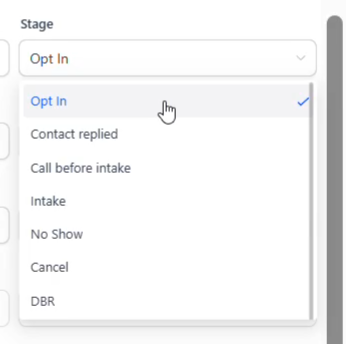
In the Opportunities panel, click +Add. Check the contact, give the opportunity a clear name, choose the pipeline and then select the correct stage.
Step 4 - Choose the right stage
A stage indicates a moment in the funnel. Do not use the stage as a free note, but as an operational status that can influence follow-up and reporting.
| Stage | Use when | Follow-up |
|---|---|---|
| Opt In | Someone has shown interest, for example via advertisement, website, chat or database reactivation. | Messages may follow to book an appointment. |
| Contact replied | The person replied to an outgoing message. | There may be further follow-up towards the appointment. |
| Follow up later | The lead needs to be followed up later. | Use this when someone is still deciding or asks to be contacted again later. Also create a task or follow-up date. |
| Intake | An intake or appointment has been booked. | As soon as an appointment is booked, the lead belongs directly in Intake. From here the club assesses the outcome. |
| No Show | The person did not show up. | Works both ways with appointment status. No show on the appointment sets the opportunity to No Show; Setting the opportunity to No Show marks the associated appointment as No show. |
| Cancel | The appointment was cancelled. | Works both ways with appointment status. Canceling the appointment sets the opportunity to Cancel; Setting the opportunity to Cancel cancels the linked appointment. |
| Trial | The person came for an intake and is in a trial phase. | Use Trial for a trial period or offer that still requires follow-up. |
Step 5 - Record the outcome with the status
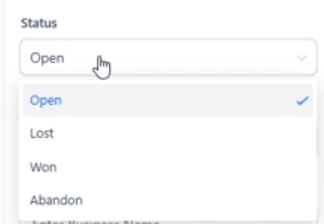
The stage tells where someone is in the funnel. The status tells you what the outcome of the opportunity is. Leave the status on Open as long as it is not yet clear whether someone will become a customer.
| Status | Meaning |
|---|---|
| Open | There is no definitive outcome yet. The person can still respond, book an appointment or become a customer. |
| Lost | The person did not become a customer. Use this after an intake or follow-up when someone does not start. |
| Won | The person has become a customer. Use this as soon as the lead actually starts or becomes a member. |
| Abandon | The lead has remained open, has not booked an appointment yet, and is no longer responding to follow-up messages after a certain period of time. Leadgains normally automatically sets such an opportunity to Abandon. |
Step 6 - Add value, owner or source only when necessary
Add Value add the expected value when you want to report it, for example the value of an annual subscription. Choose one Owner if a specific coach or employee is responsible for the lead.
Source can indicate where the lead came from, for example advertisement, website, chat or database reactivation. Only adjust this if the source is incorrect or incomplete.
Step 7 - Save and check the timeline
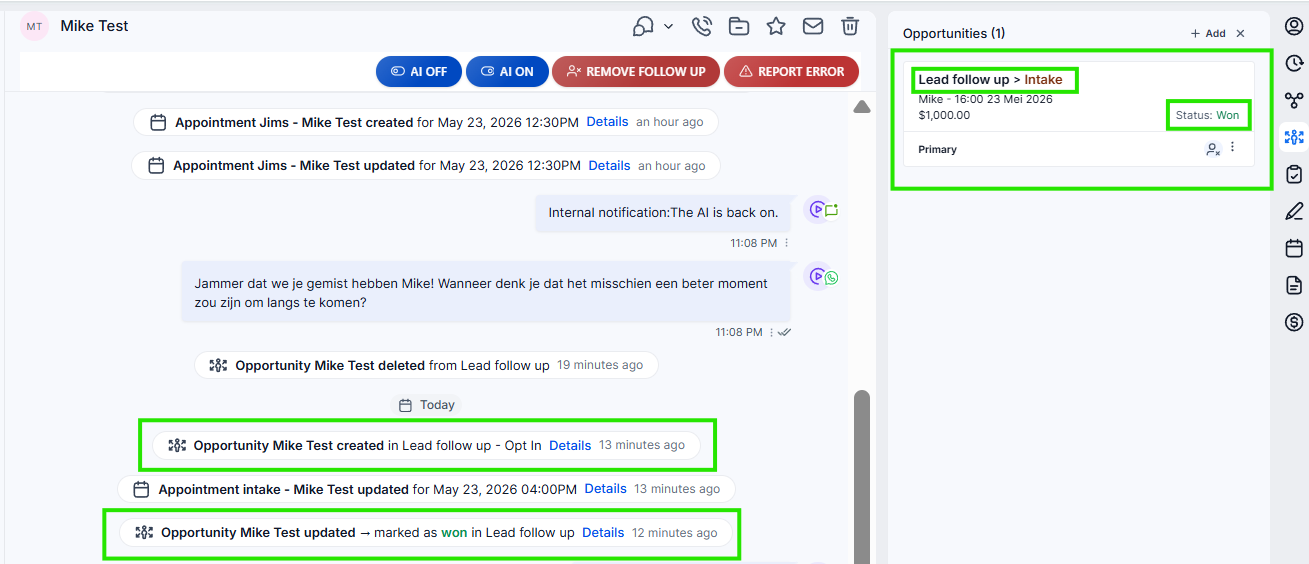
Click Create with a new opportunity or op Update when you edit an existing opportunity. Then check in the timeline whether the change has been registered logically.
Step 8 - Use the Opportunities tab for complete overview
If you want to see all leads per stage, open the SOP about Opportunities and manage pipeline. That page is about the entire pipeline board. This SOP is specifically about working from a conversation in Conversations.
Common problems
An appointment is the specific moment when someone comes by or is called. An opportunity is the pipeline map with which Leadgains tracks where the lead is in the funnel and what the final outcome is.
No. For new leads, the opportunity is usually created automatically. Only create an opportunity manually if a correct card does not yet exist or if you consciously want to follow up on a new opportunity.
Set the status to Won when the lead has actually become a customer or member. If necessary, also add the value of the subscription.
Set the status to Lost when after intake or follow-up it is clear that the person will not start. Abandon is intended for open leads who no longer respond before booking an appointment and is normally set automatically.
Abandon means that an open lead has not reached an appointment within the follow-up period. The lead no longer responds to the follow-up messages, causing Leadgains to automatically close the opportunity with status Abandon.
That may be normal behavior. The stages No Show and Cancel can start follow-up to book another appointment. They also work both ways with the appointment status: a no-show or cancellation on the appointment puts the opportunity in the same stage, and setting the opportunity to No Show or Cancel updates the associated appointment status.
Check that you have opened the correct contact. If the message remains, the rights to manage opportunities in this account are probably missing. Ask an administrator to check this.