
Conversations & follow-up
Remove someone from follow-up
Use this how-to when a contact should no longer receive automatic follow-up. You work from Conversations and use the button Remove Follow Up.
Brief overview
A contact can be in several automatic follow-ups. Consider follow-up after database reactivation, an advertising lead, a no-show, a canceled appointment or a booked appointment with reminders.
Use Remove Follow Up when someone no longer wants to be contacted, is no longer interested, has indicated by telephone that follow-up is not necessary, or is temporarily unable to visit.
Open the right conversation via Conversations into app.ldgns.be. Then click Remove Follow Up to remove the contact from the active follow-up flows.
| Situation | What are you doing? |
|---|---|
| Database reactivation | Use this with contacts who responded to a reactivation message, such as a free 10-day pass, and then no longer need to be followed up. |
| Advertising lead or regular lead follow-up | Use this with new leads who filled out a form but don't need any further messages. |
| No-show follow-up | Use this when someone didn't show up and further no-show follow-up no longer makes sense. |
| Cancel follow-up | Use this after an appointment has been canceled and the contact should not be followed up again. |
| Booked appointment with reminders | First cancel the appointment if the reminders need to stop. Then click Remove Follow Up. |
Video explanation
In this video you will see when you Remove Follow Up used, what types of follow-up flows there are and why you first cancel an existing appointment.
This video is in Dutch. Click the gear icon in the video player, turn on Closed Captions and choose English under Caption Language.
How to change subtitle languageStep-by-step plan
Step 1 - Open the appropriate conversation
Go to Conversations and open the conversation from the right contact. Check the name and recent posts before making any changes.
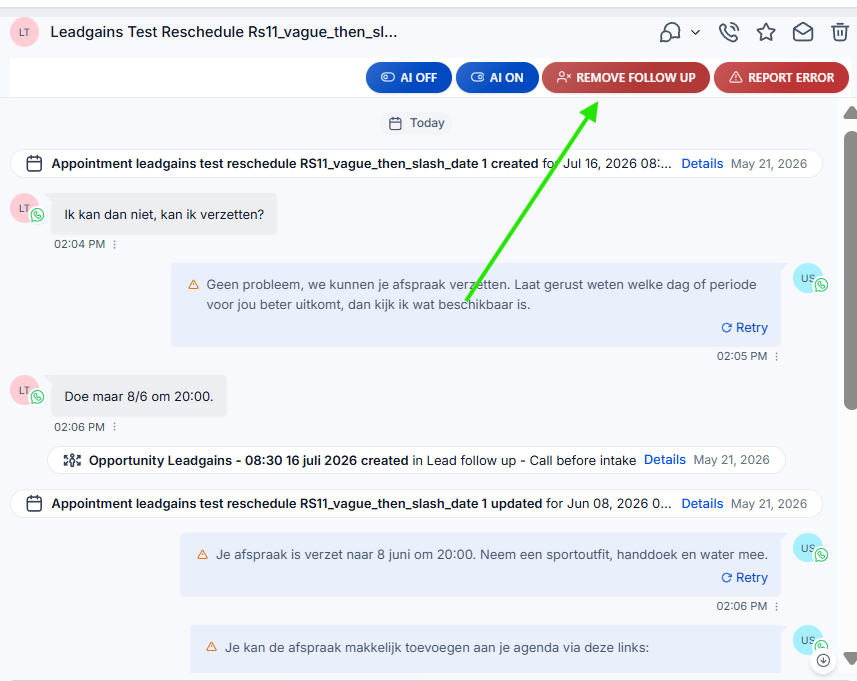
Step 2 - Determine if an appointment is active
If the contact is only in lead, DBR, no-show or cancel follow-up, you can go straight to step 4. If the contact has a booked appointment and is no longer allowed to receive confirmation or reminders, you must cancel the appointment first.
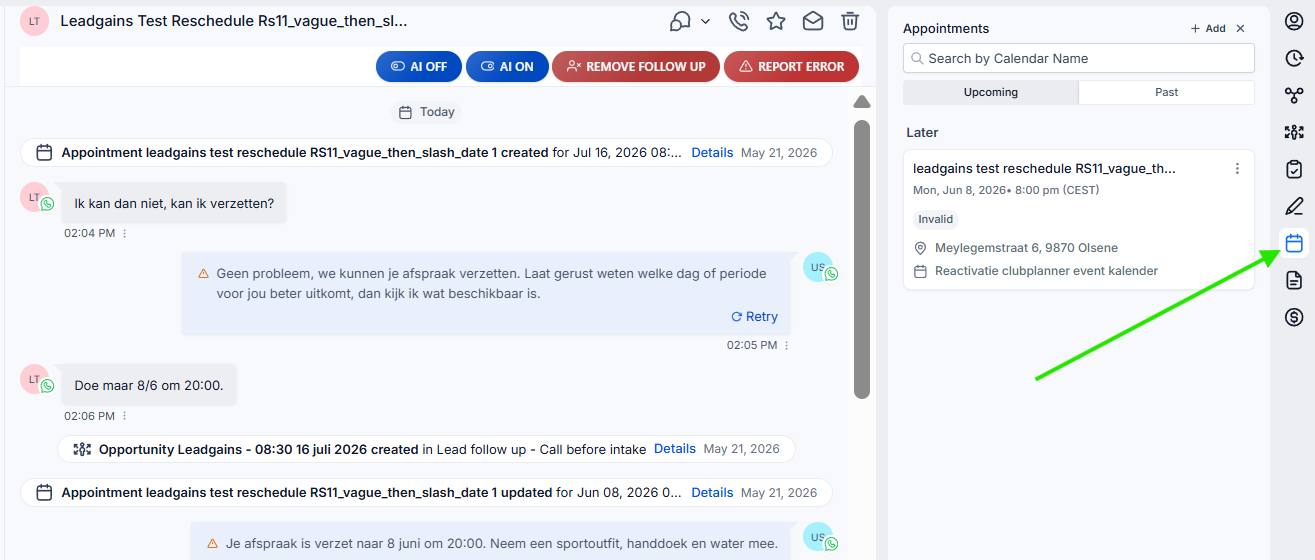
Step 3 - Cancel the appointment if reminders need to stop
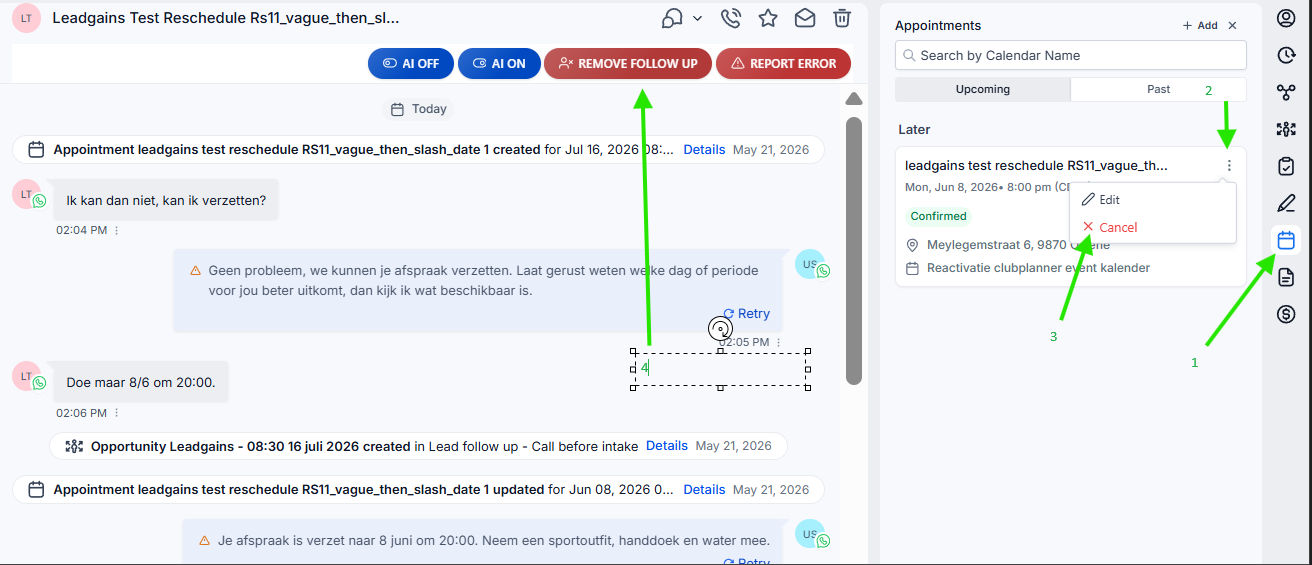
Right click on the calendar icon Appointments to open. Then click on the three dots next to the appointment and choose Cancel. After canceling, the contact will enter the cancel follow-up.
Therefore, click again after canceling Remove Follow Up. This way you not only stop the appointment reminders, but also the cancel follow-up that was started by the cancellation.
Step 4 - Click on Remove Follow Up
Click at the top of the conversation Remove Follow Up. Also do this after canceling an appointment, so that the contact is removed from the cancel follow-up again.
Step 5 - Check the internal message
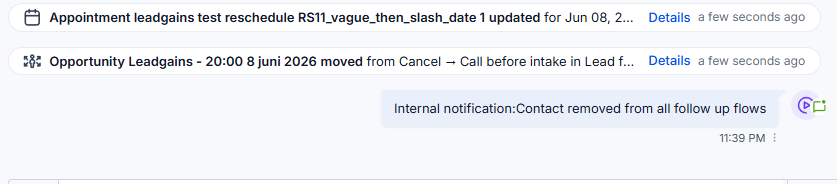
After clicking, an internal message will appear in the conversation: Internal notification:Contact removed from all follow up flows. That notification confirms that the contact was removed from the follow-up flows.
Common problems
No. If you don't want to stop a booked appointment with reminders, just click Remove Follow Up.
Use the button for database reactivation, regular lead follow-up, no-show follow-up, and cancel follow-up. You can stop appointment reminders by first canceling the appointment and then restarting it Remove Follow Up clicking.
First cancel the appointment via Appointments. Then click Remove Follow Up to also stop the cancel follow-up.
No. The contact, the conversation, the notes and the history remain. Only follow-up is stopped.
The button does not cancel an appointment. Open Appointments and cancel the appointment separately if it is no longer allowed.
Wait a few seconds and refresh the conversation. Also check if you really like it Remove Follow Up clicked and not another action button.