
Conversations & messages
Send messages via Conversations
Use this SOP when you want to send an SMS, WhatsApp, email or internal comment from a conversation and want to know when WhatsApp requires free text or an approved template.
Brief overview
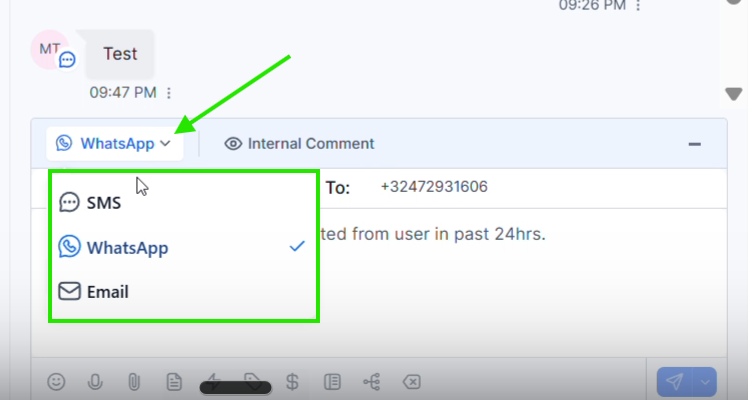
Open the right conversation via Conversations into app.ldgns.be. At the bottom of the composer, use the arrow to choose which channel you want to use: SMS, WhatsApp, email or internal comment.
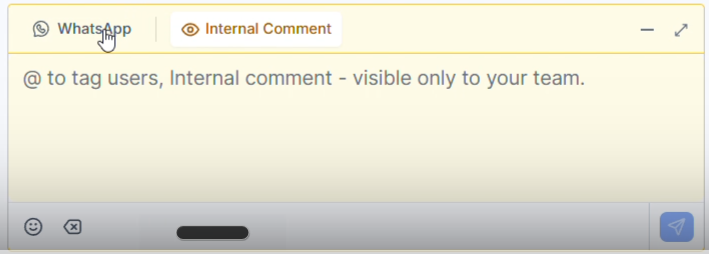
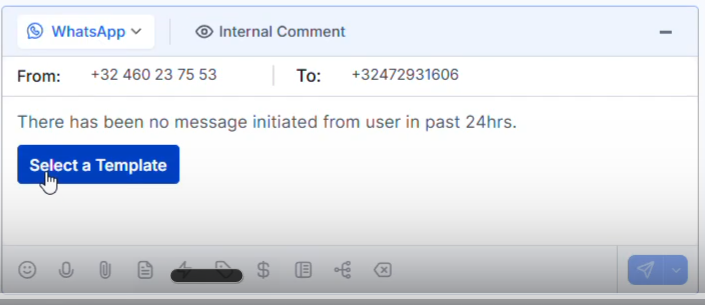
One internal comment is only visible to your team. An email, SMS or WhatsApp message goes to the contact itself. For WhatsApp, the 24-hour window applies: if the contact has not sent you in the last 24 hours, you cannot type a freely chosen message and must select a pre-approved WhatsApp template.
If you often send the same type of WhatsApp message, create your own template via the SOP Create and use WhatsApp template.
Video explanation
View the walkthrough if you want to see the channel selection, the WhatsApp 24-hour window and sending a template in the screen.
This video is in Dutch. Click the gear icon in the video player, turn on Closed Captions and choose English under Caption Language.
How to change subtitle languageStep-by-step plan
Step 1 - Choose the right messaging channel
Open the conversation of the correct contact and click on the arrow next to the current channel in the composer. Then choose the channel you want to reply with: SMS, WhatsApp, Email or Internal Comment.
Step 2 - Use email for longer messages
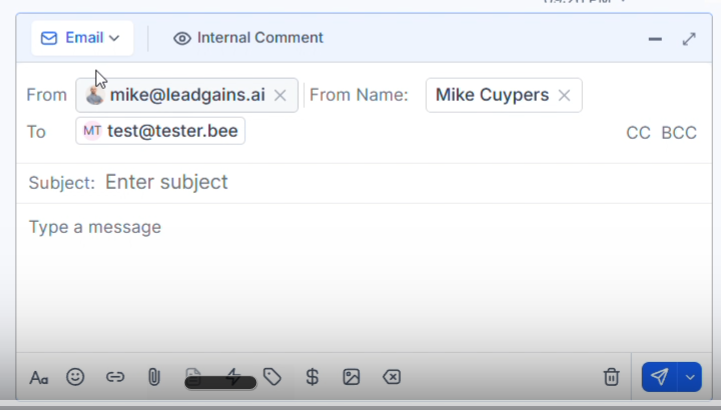
Choose Email when you want to send a full email message. Check the sender, recipient, subject line, and content before sending.
Step 3 - Use internal comment only for your team
Choose Internal Comment when you want to leave a comment for other users. This message is not visible to the end contact.
Step 4 - Check the WhatsApp 24-hour window
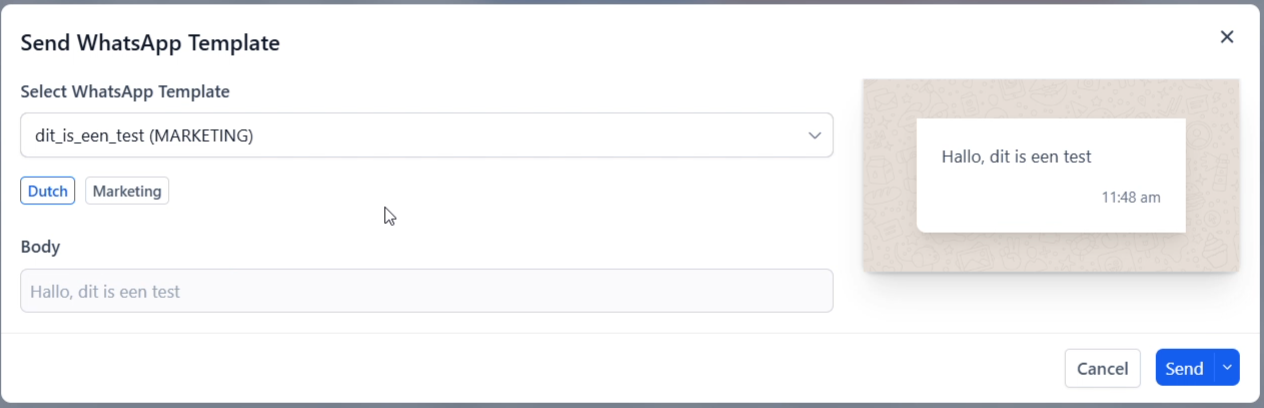
Choose WhatsApp when you want to answer via WhatsApp. If it says that there has been no message from the user in the last 24 hours, you are not allowed to type a free message. Then you have to get up Select a Template click and use an approved template.
Step 5 - Select and check the template
Choose the correct WhatsApp template, check the language, category, body and preview and then click Send. Only use templates whose text fits the situation and the contact.
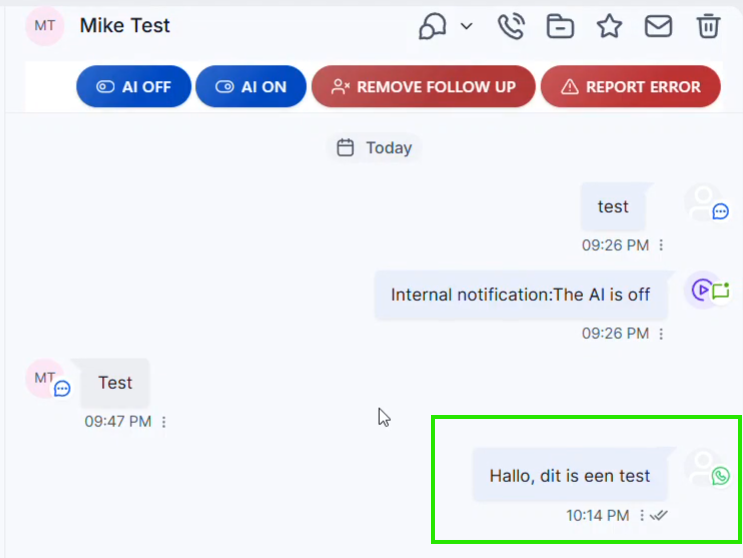
Step 6 - Check if the message is in the conversation
After sending, the WhatsApp message will appear in the conversation timeline. Check that the message is under the correct contact and that it was sent via the intended channel.
Common problems
The contact probably did not send an WhatsApp message within the last 24 hours. Then use Select a Template and submit an approved template.
Verify that the template exists and is active in this Leadgains account. For recurring messages, create your own template via Create and use WhatsApp template.
Use Internal Comment. Never send sensitive or internal context via SMS, WhatsApp or email.
First check From, From Name, To and Subject. Only then edit the content and send the message.