
Telephony, SMS & Conversations
Call and SMS with your Leadgains number
Use this manual once your telephone number is connected to Leadgains. You will learn how to make calls, send SMSs, use call scripts, follow up incoming calls and approximately what usage costs you can expect.
Brief overview
When your Leadgains number is connected, you can via Conversations into app.ldgns.be calling and SMS with contacts. All calls and messages end up on the contact's timeline, so your team can see what happened afterwards.
Calls are made via Voice over IP. This means that you call via the microphone and speakers of your computer or via the mobile app, without having to use your private number. The associated Leadgains number is used as a business number.
SMS works from the same conversation screen. You choose the correct shipping number, write your message and send it directly from Leadgains. This is especially useful when WhatsApp is not available, when someone prefers to receive SMS, or when you want to follow up quickly after a missed call.
Video explanation
Watch this video to see how to make calls from Conversations and from the pipeline, how to add notes or appointments during a call and how to save the correct result after the call.
This video is in Dutch. Click the gear icon in the video player, turn on Closed Captions and choose English under Caption Language.
How to change subtitle languageWays to call
You can call in different ways. Which route you use depends on where you are working at that moment.
| Way | When to use? |
|---|---|
| From Conversations | Best choice when you are already in the conversation and want to immediately see the history, messages and notes. |
| Via the general call button | Useful when you want to quickly dial a number, call back a recent number or search for a contact. |
| From a contact sheet | Useful when you first check the contact's details, tags, appointments or notes. |
| From the pipeline | Useful when you follow up on lead cards or opportunities and want to call a contact directly from the pipeline. |
| Via Manual Actions | Use this when you have a call queue ready, for example for leads assigned to your team by a workflow. |
| Via the mobile app | Use this when you are on the road and still want to call from the Leadgains business number. |
Calling from the pipeline
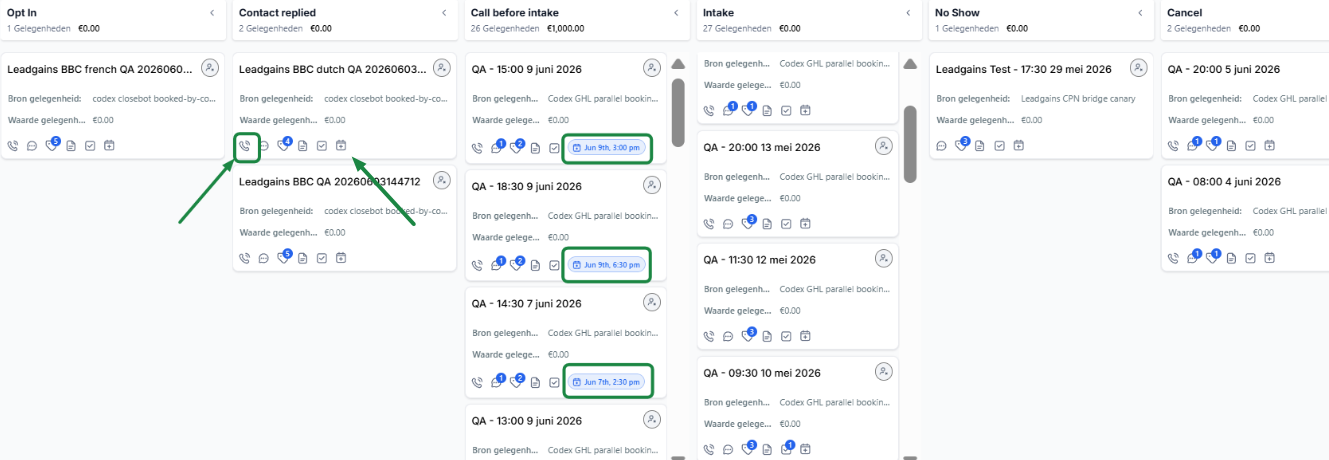
The pipeline is useful when you want to quickly follow up on multiple leads. You can immediately see which phase someone is in and can call directly from the lead card.
Step 1 - Open the appropriate pipeline stage
Go to your pipeline and choose the phase you want to follow up. For example, consider Opt In, Contact replied, Follow up later, Intake, No Show or Cancel.
Step 2 - Call, make an appointment or add a note
You will see action buttons on each lead card. Click on the phone icon to call the person immediately. If you want to make an appointment immediately, click on the calendar icon. You can also add a note so that important context remains with the lead.
Step 3 - Work per phase with a clear reason for calling
| Pipeline phase | Why call? |
|---|---|
| Opt In | The lead has shown interest, but has not yet booked an appointment. |
| Contact replied | The lead responded. So there is already interaction and calling can accelerate the next step. |
| Intake | Call people who have an appointment soon to invite them personally and increase the chance of showing up. |
| No Show or Cancel | Call to reschedule and reschedule where possible. |
Calling from Conversations
Step 1 - Open the conversation and click on the phone icon
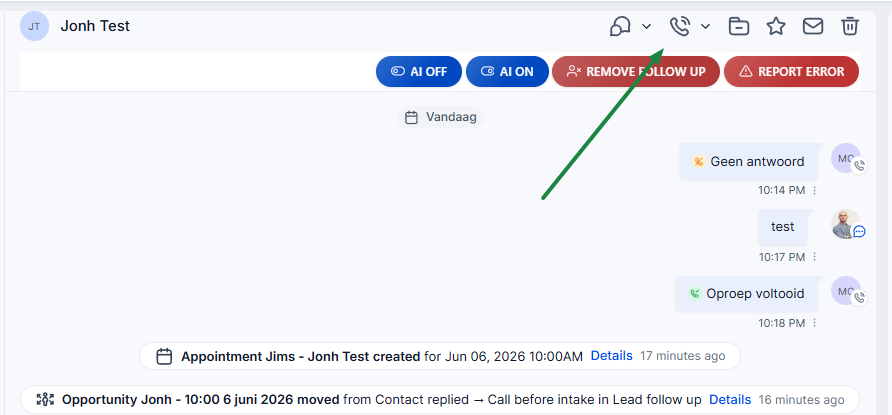
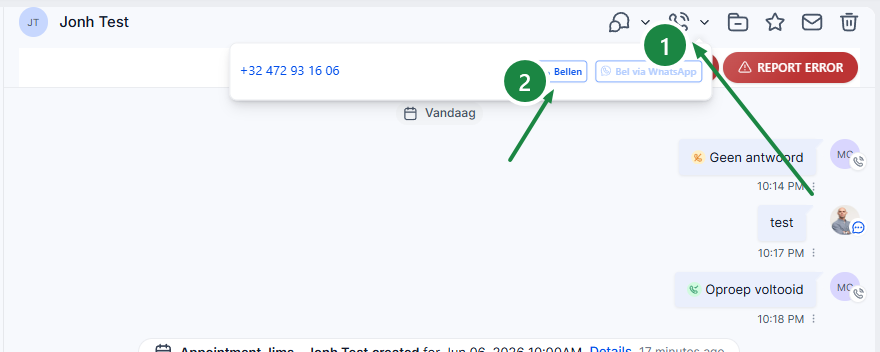
Go to Conversations and open the conversation of the person you want to call. Check the name and telephone number. Then click on the bell icon or telephone icon at the top right.
Step 2 - Select the correct outgoing number if necessary
If your account has multiple phone numbers, check the field Calling From or the shipping number in the call window. Use the number that belongs to this branch, campaign or employee.
If you only see one number, Leadgains will automatically use the available or assigned number.
Step 3 - Have the conversation via your computer
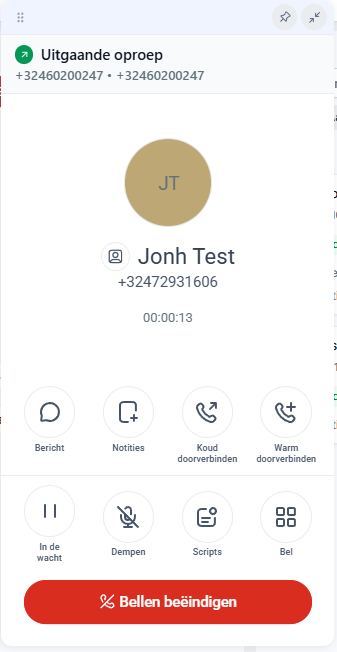
After clicking, the call window opens. Leadgains calls the person using the linked number. Speak via your computer, headset or mobile app.
You can continue to work in the software while calling. For example, you can create an appointment, take notes, check the contact or via Scripts load a call script.
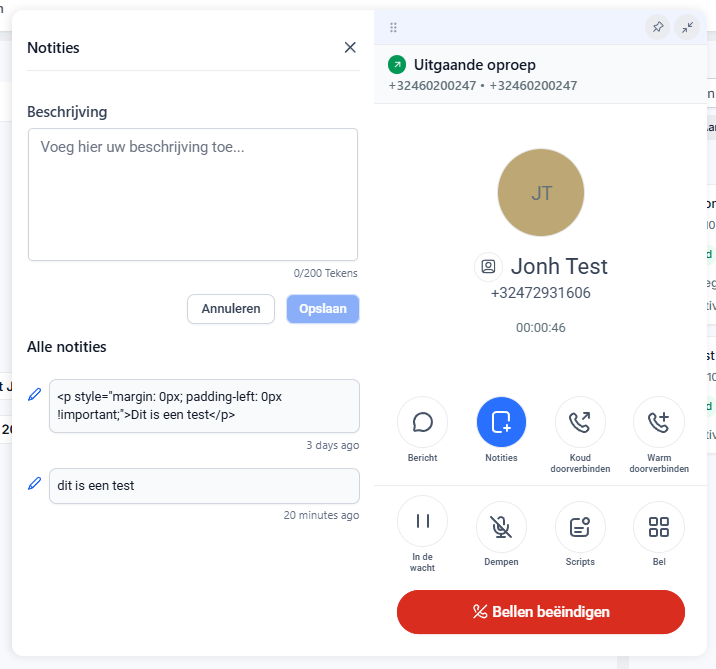
Step 4 - Use the buttons in the call window
| Button | Meaning |
|---|---|
| Mute | Turn off your microphone temporarily. The customer will then not hear you. |
| Hold | Place the call on hold. |
| Dial/Keypad | Use this when you need to enter numbers, for example in a selection menu. |
| Notes | Take notes right away while the context is still fresh. |
| Scripts | Open a call script during the call. |
| Transfer | Transfer the call to a colleague or other number, if this option is active. |
| End Call | End the conversation when you're done. |
Step 5 - After the conversation, choose the correct outcome
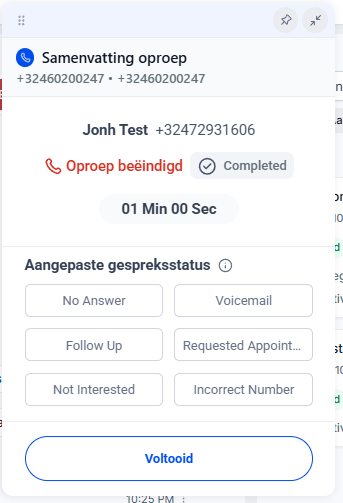
After End Call Leadgains opens a call summary. Choose the disposition that suits the conversation. Use More Dispositions when the option you need is not immediately visible.
| Result | When to use? |
|---|---|
| No Answer | You called, but the person didn't answer. |
| Voicemail | You left a voicemail or went to voicemail. |
| Requested Appointment | You made an appointment or specifically scheduled it during the conversation. |
| Call Back Later | The person wants to be called back later. |
| Not Interested | The person clearly indicates that he or she is not interested. |
| Incorrect Number | The telephone number is incorrect or you have reached the wrong person. |
Step 6 - Update the contact immediately
Click Done to save the call result. Then check whether the correct next step has been registered: appointment, note, task, tag or follow-up. This way the conversation remains useful for everyone in your team.
These call results also help to see later in reports who is calling, how many calls are taking place and which outcomes often occur.
Add and use call scripts
Call scripts help your team have conversations more consistently. New employees do not have to improvise, and experienced employees are less likely to forget important questions or closing statements.
Add a call script
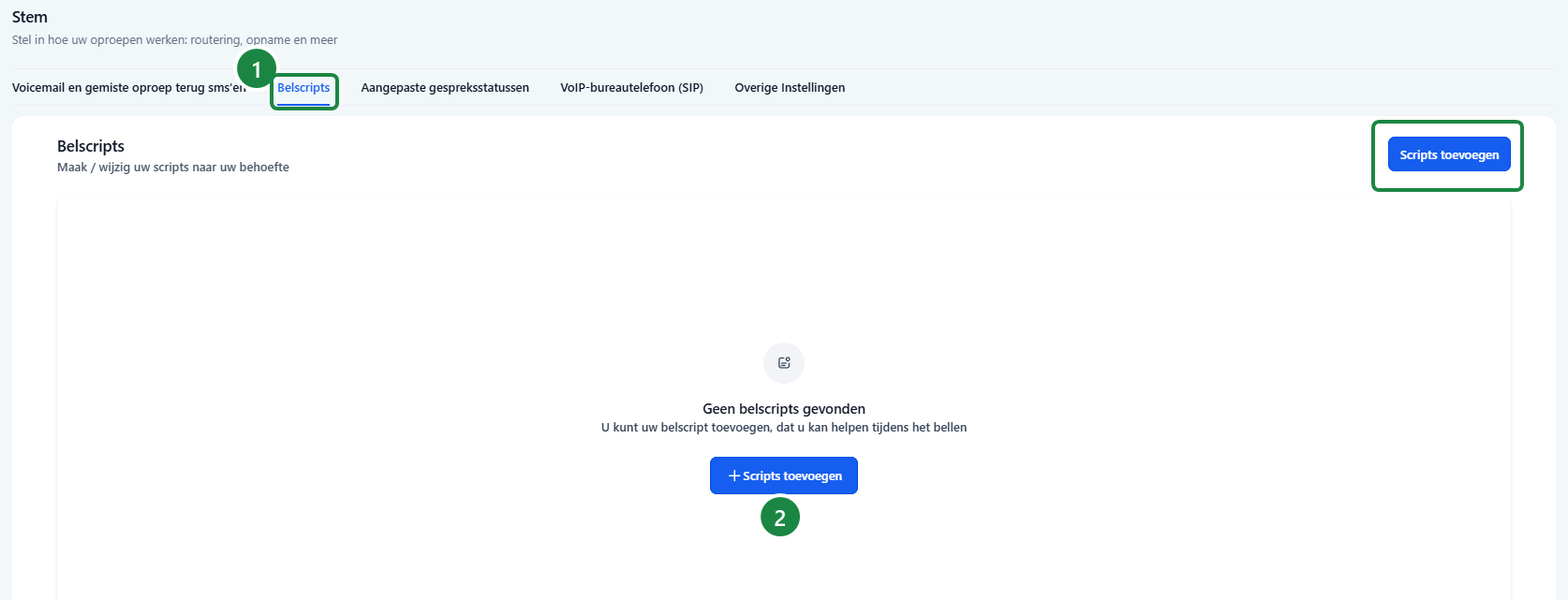
- Open Settings in Leadgains.
- Go to Telephone system and open Speech.
- Click Call scripts.
- Click Add scripts.
- Give the script a clear name, for example New lead - introduction.
- Paste or write the text of the script.
- Click Save.
Use a call script during a call
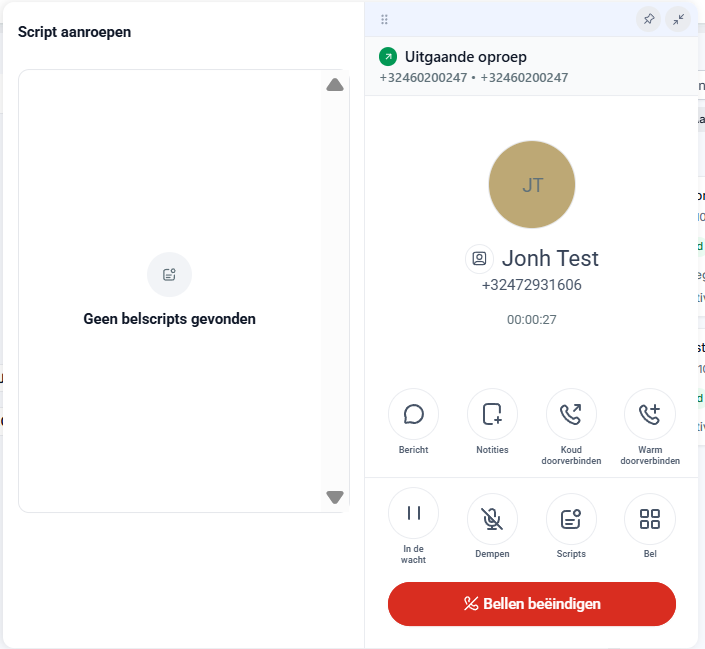
- Start or receive a call.
- In the call window, click Scripts.
- Choose the correct script from the list.
- Follow the script during the conversation and note any deviations or important answers when contacting.
Recommended structure for a good call script
| Part | Example |
|---|---|
| Opening | "Hello {{contact.first_name}}, you are speaking to [name] from [club]. Should I call?" |
| Context | "You had shown interest in our trial lesson / introduction / promotion." |
| Qualification | "What is the most important reason for you to start now?" |
| Appointment proposal | "Then a short introduction seems best. Is [day/time] or [day/time] better?" |
| Objection | "I understand that. What would make it easier to come by without obligation?" |
| Closure | "Great, then your appointment has been scheduled. You will receive confirmation shortly." |
Use SMS with your Leadgains number
You send SMS from Conversations. Open the conversation, choose the SMS channel and check the send number before sending the message.
- Open the correct contact Conversations.
- Choose SMS in the message composer.
- Check the field From. Choose the correct Leadgains number if multiple numbers are available.
- Check the field To when the contact has multiple phone numbers.
- Write your message and click send.
Use SMS mainly for short, direct communication. Consider quick feedback after a missed call, an appointment confirmation or a short question when WhatsApp is not available.
Incoming calls and missed calls
When someone calls your Leadgains number, we forward that number to the club's number. The caller will therefore automatically be directed to the current club number or to the number you have chosen as the receiving number.
Who gets the call?
The call comes in to the club's number. Anyone who normally answers the phone for the club also answers calls that come in via the Leadgains number.
What happens if no one answers?
If no one answers, the caller can leave a voicemail. You can listen to that voicemail afterwards in Leadgains during the correct call or contact.
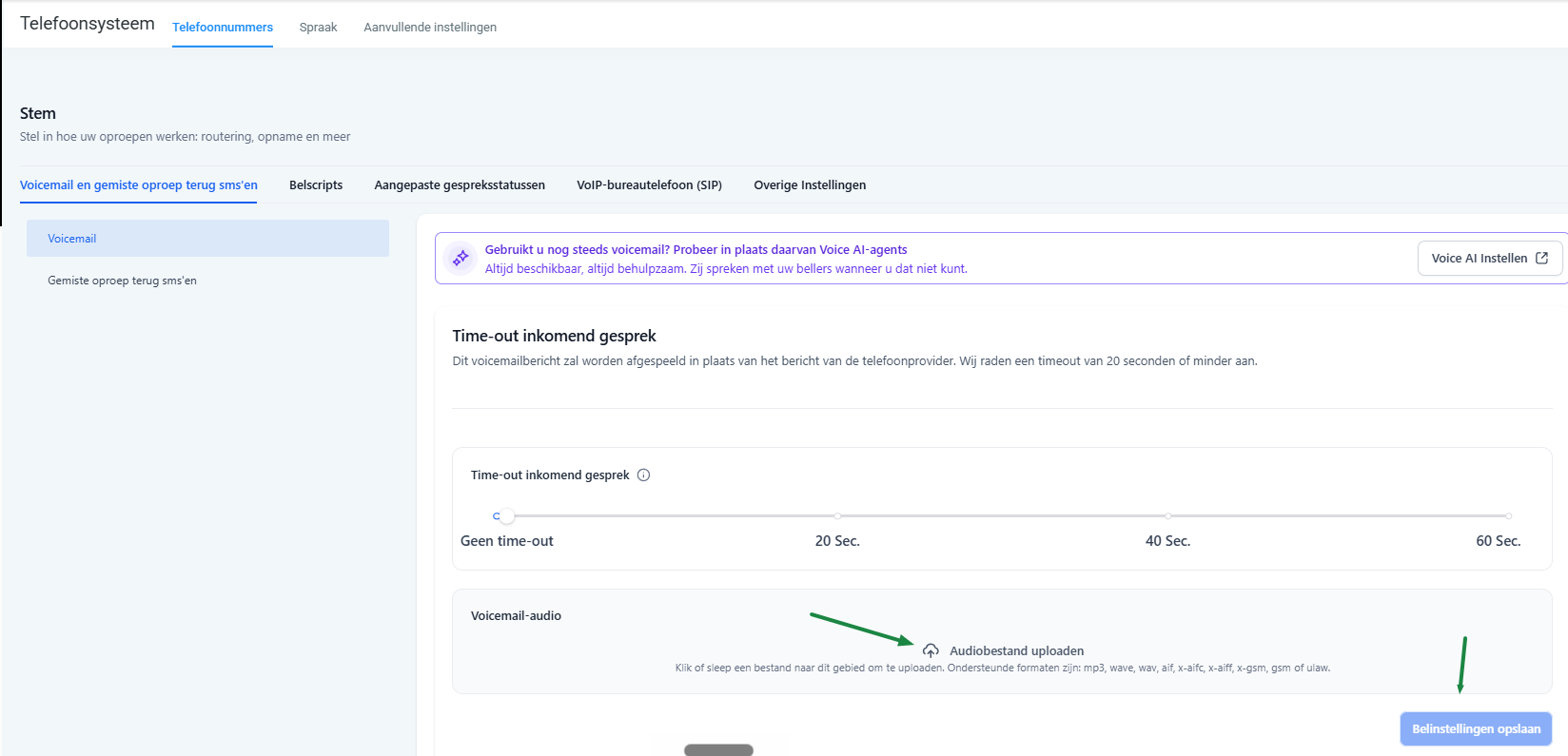
In addition, Leadgains can automatically send out a short SMS message after a missed call. For example:
Hey, we missed your call. How can we help you?
Target prices for bells and SMS
Telephony and SMS are generally charged per usage. Twilio is the technical provider behind many telephony and SMS functionality. The exact cost may depend on country, number type, direction, volume, any platform costs and the way your Leadgains account is billed.
The amounts below are rounded target prices in euros. They are based on public Twilio prices in USD, converted on June 5, 2026 with approx 1 USD = 0.86 EUR. Always check the current Twilio page before accurately estimating costs.
| Country | Send SMS | Received SMS | Call local number | Calling mobile number | Receive call |
|---|---|---|---|---|---|
| Belgium | approximately EUR 0.10 per segment | approximately EUR 0.01 per segment | approximately EUR 0.06 per minute | approximately EUR 0.03 per minute from EEA | approximately EUR 0.01 per minute |
| Netherlands | approximately EUR 0.10 per segment | approximately EUR 0.01 per segment | approximately EUR 0.02 per minute | approximately EUR 0.02 per minute from EEA | approximately EUR 0.01 per minute |
Current sources:
Common problems
Check whether your computer is using the correct microphone and speaker. Give your browser permission to use the microphone and test with a headset if necessary.
Check that the contact has a valid phone number, that you are working in the correct account, and that your user has access to calling. Refresh the conversation if the call window does not open.
Check the field Calling From in the call window. If you don't see a choice, the number may be associated with your user or the account's default setting.
Check if the script is saved under Settings > Telephone system > Speech > Call scripts. Then reopen the call window.
Click More Dispositions in the call summary. There are additional results that are not always immediately visible at the top.
Check the Incoming Call Timeout and the call forwarding settings. Too short a timeout can give your team insufficient time to record.
Check if your message consists of multiple SMS segments. Long messages, special characters and emojis can increase the segment count. Also check the current Twilio prices for the correct country.
Immediately add a clear note to the contact with the correct outcome. Then check whether appointments, tasks or follow-up still need to be adjusted manually.