
Conversations & AI
Turn AI on and off in Conversations
Use this how-to when you want to temporarily stop the AI for a specific contact or have it respond again.
Brief overview
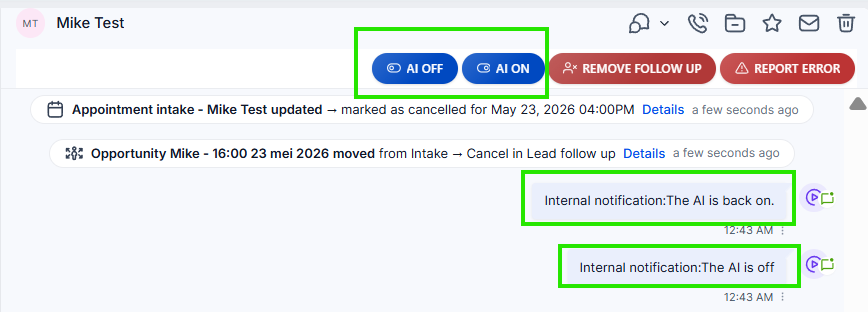
You turn the AI on or off per contact. Open the right conversation via Conversations into app.ldgns.be and use the buttons at the top of the conversation AI OFF and AI ON.
Use AI OFF when you want to take over the conversation yourself, for example because the AI has misunderstood something or because you want to respond personally. Use AI ON only when you are sure that the AI can continue the conversation logically.
When someone from the team themselves sends a message to the contact, the AI switches off again. This prevents the AI from continuing to respond at the same time or just after your manual message.
| Action | Result |
|---|---|
| AI OFF | The AI stops before this contact. The internal message appears in the conversation Internal notification:The AI is off. |
| AI ON | The AI may respond again for this contact. The internal message appears in the conversation Internal notification:The AI is back on. |
| Team sends a message itself | The AI automatically turns off so the conversation doesn't get mixed up. |
Video explanation
View the walkthrough if you want to see where the buttons are and what happens when you send a message yourself.
This video is in Dutch. Click the gear icon in the video player, turn on Closed Captions and choose English under Caption Language.
How to change subtitle languageStep-by-step plan
Step 1 - Open the appropriate conversation
Go to Conversations and open the conversation of the contact for which you want to adjust the AI. Always check the name and latest messages before turning the AI on or off.
Step 2 - Click on AI OFF when you want to take over
Click at the top of the conversation AI OFF. The internal message will then appear in the timeline Internal notification:The AI is off. That notification is only visible to the team.
Step 3 - Send your own message if necessary
If you intervene, send your message as usual from the composer. As soon as a team member answers themselves, the AI automatically turns off. This is expected behavior: the AI does not immediately take over the conversation again.
Step 4 - Only consciously turn the AI back on
Click AI ON when the conversation is clear enough for the AI again. The internal message will then appear Internal notification:The AI is back on.
Don't just turn the AI back on when you're already deep into a conversation or when you've just made a correction. The AI may then miss context or interpret the conversation differently than you intend.
Common problems
No. AI OFF works per contact. Other conversations continue to work as before.
It is deliberately set that way. When you intervene, the AI should not keep answering at the same time or override your manual message.
No. Notifications like Internal notification:The AI is off and Internal notification:The AI is back on. are only visible to the team in Leadgains.
Don't turn the AI back on when you are personally handling the call, when something just went wrong, or when the context might be confusing to the AI.
First check whether you have the internal message Internal notification:The AI is back on. sees. If the problem persists, please report it Report Error with a short description and screenshot.