
Top up your wallet
First check the company name and address used on your invoices. Then enter your VAT number and add credit. Follow the steps below.
Overview
Your wallet is a prepaid balance for services charged according to usage. Top-ups are charged to your account’s default payment card.
$50 wallet credit + $10.50 VAT = $60.50 to pay.
This example is in USD. Check the applicable VAT and total before paying.
Video guide
See how to add credit and set up automatic top-ups in about a minute and a half. The video is in Dutch.
This video is in Dutch. Click the gear icon in the video player, turn on Closed Captions and choose English under Caption Language.
How to change subtitle languageBefore paying, check your company name, billing address and VAT number using steps 1 to 4 below. The video does not cover this check in detail.
Before you start
This guide is for the owner or administrator with access to the club’s billing settings. Have your official company name, full billing address and VAT number ready, along with a valid payment card.
Enter your billing details first
Step 1 — Open billing for your club
Open LeadgainsOpen your club’s billing page
This club link opens billing directly after you log in. Check that the correct club is shown at the top.
- Log in if asked. At the top left, check the club name (1). Click that name to choose another club.
- At the bottom left, click Settings. Then, in the left menu, click Billing (2).
- At the top, click the Payments (3). You will now see the sections for your payment card, VAT number and company details.
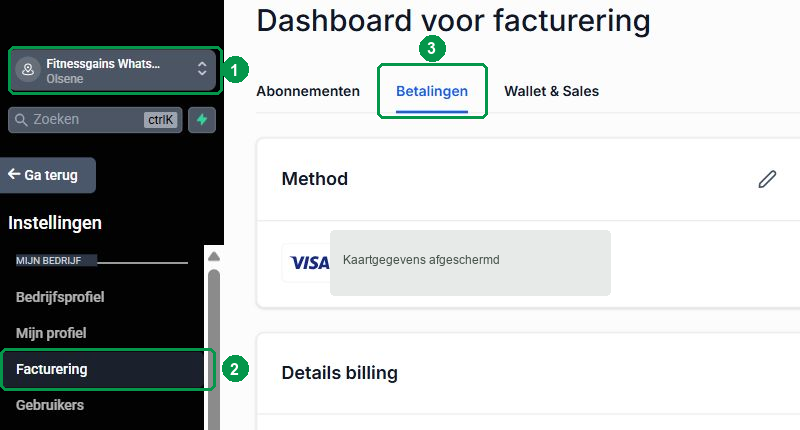
Is your account in English? Follow Settings → Billing → Payments. If you cannot see Billing, ask the owner or administrator to open it.
Step 2 — Check your company name and billing address
Find the Details billing section on the Payments page. It shows the company name and address used on your invoices. Click the pencil at the top right of that section. The form below opens.
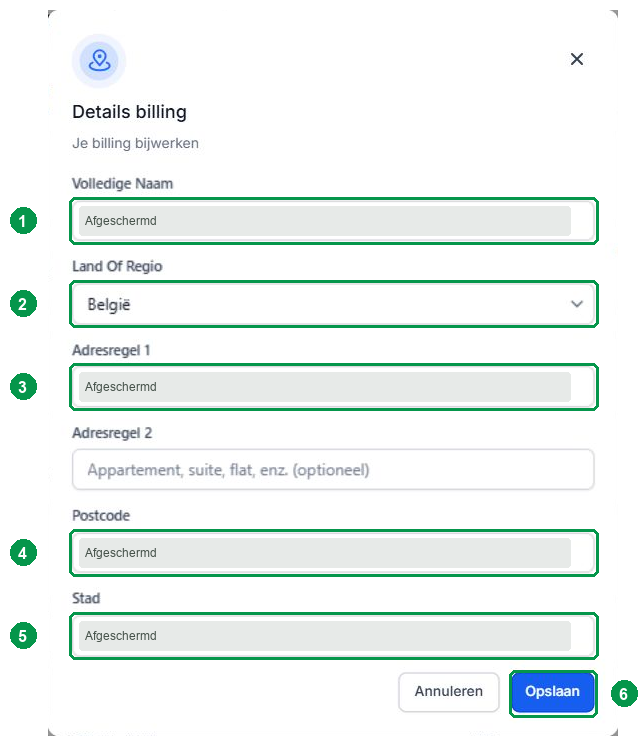
- 1 — Full name: the official company name that should appear on the invoice. This may differ from your club’s name.
- 2 — Country or region: the country of your billing address.
- 3 — Address line 1: street and house number. Address line 2 is only needed for additional address information.
- 4 — Postal code and 5 — City: the postal code and city of your billing address.
Correct any incorrect details and click Save (6). Then check in Details billing that the name and address are displayed correctly. If you cannot edit a detail, ask Leadgains Support to check it before topping up.
You cannot change the billing email address in this address form. Contact Leadgains Support if you want to change it.
Step 3 — Check your VAT number
On the same page, find the Details Tax. A Tax Id is a tax number; for a company with a VAT number, this means that VAT number. If the correct number already appears here, you do not need to add it again.
Is the number missing? Click the pencil beside Details Tax, also labelled Je Tax Details. Complete the form as follows:
- Tax Id Type (1): choose EU_VAT for a Belgian or Dutch VAT number.
- Tax ID (2): enter your own full VAT number, including BE or NL. Do not copy the example text from the empty input field.
- Do you have a VAT number? Leave I do not have a Tax Id (3) unchecked.
- Click Save (4). Then check that your number appears in Details Tax.
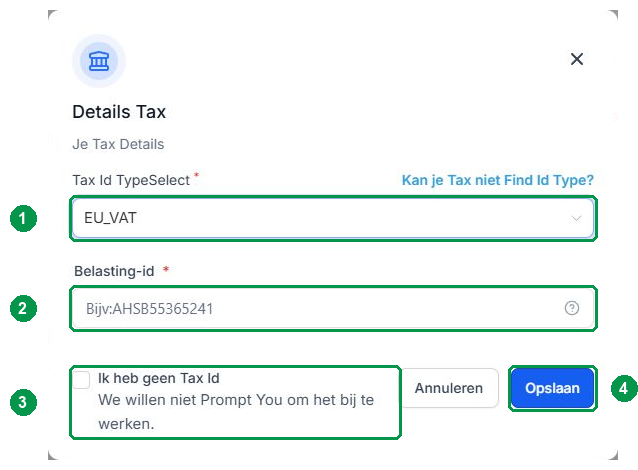
Does a message say that the number already exists? Do not add it again or delete the existing number. Ask Leadgains Support to check the connection before you pay.
Step 4 — Check the payment card
On the Payments page, look under Method. Check the last digits and expiry date of your payment card. This is the card charged for top-ups. Update an expired or incorrect card first. If no payment card is linked yet, add one via Payments, or enter your card details when prompted in the top-up window. Check the amount before confirming payment.
Top up your wallet
Step 5 — Open your wallet
At the top, click Wallet & Sales (1). In the menu that appears, click Wallet & Recharge (2). Here you can see your current balance and the Add Balance (3). Depending on your screen version, the top tab may be called Wallet & Transactions.
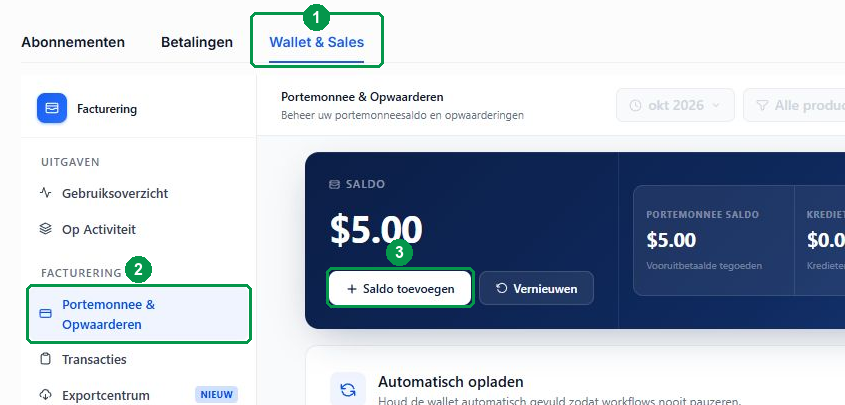
Step 6 — Choose the amount and confirm
Click Add Balance or + Add. Enter the desired amount in US dollars (USD). Check the applicable VAT and total payable before confirming. If the VAT amount or total is unclear, ask Support to check it first.
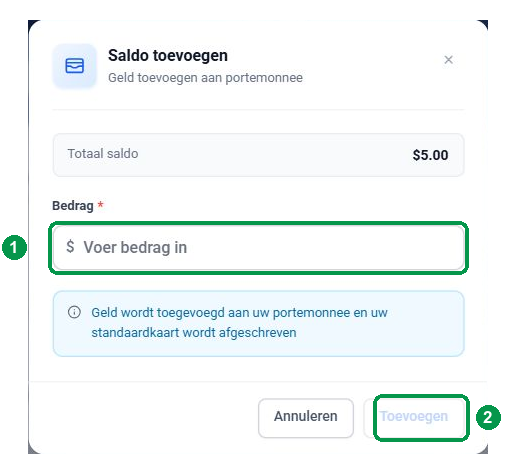
Only then click Add. Complete any card verification. Then check that your wallet balance has increased.
Automatic top-ups
Under Wallet & Recharge you will find Automatic top-ups. The Top-up amount is the amount added; the Low balance threshold determines when this happens.
Example: with a top-up amount of USD 50 and a low-balance threshold of USD 10, USD 50 in credit is added when your balance drops below USD 10. Automatic top-ups also have applicable VAT added on top of the credit.
Check afterwards
Check the new balance and top-up history. Under Payments → Invoices check whether the corresponding invoice is available. Before sending it to your accountant, check the company name, billing address, VAT number, currency and VAT.
A card charge or payment receipt does not replace this check. If an invoice is missing or incorrect, ask Leadgains Support for the correct invoice. Do not assume that changing your details automatically updates an existing invoice.
Frequently asked questions
The system currently only supports wallet top-ups in US dollars (USD/US$). Your wallet balance, automatic top-up amount and low-balance threshold are also in USD. Topping up directly in euros is currently not possible.
Ask the owner or administrator to open billing, or contact Leadgains Support.
Entering a VAT number does not by itself determine the VAT treatment. If in doubt, have your billing details and tax treatment checked.
Ask Leadgains Support to check the existing number and your billing details. Do not delete the existing number to add it again, and do not declare that you have no Tax Id if your company has one.
Check your card, available limit and any bank verification. If money has already been charged but your balance has not increased, contact Support before paying again.
First check Payments → Invoices. Do not assume invoices are sent automatically; ask Support for help if the invoice is missing.