
Settings
Add and manage employee in Leadgains
Add a new employee via My Staff, set roles and permissions correctly and then manage authentication, password, calendar and notifications per user.
Brief overview
Open directly My Staff in app.ldgns.be. First check whether you are working in the correct account. From there you can add a new employee or manage existing users.
For a new user you need at least a first name, last name and email address. Then you choose the right role, enable only the necessary permissions and you can optionally manage additional settings such as availability, calendar link, call settings and notifications.
Video explanation
Check out the walkthrough if you want to follow the entire process on screen, from User Info to Roles & Permissions and the additional user tabs.
This video is in Dutch. Click the gear icon in the video player, turn on Closed Captions and choose English under Caption Language.
How to change subtitle languageSupplies
- Access the correct Leadgains account with permissions to MyStaff to manage.
- At least the FirstName, Last Name and Email of the employee.
- Any additional information such as telephone number, own calendar or desired notifications if you want to set them up immediately.
Step-by-step plan
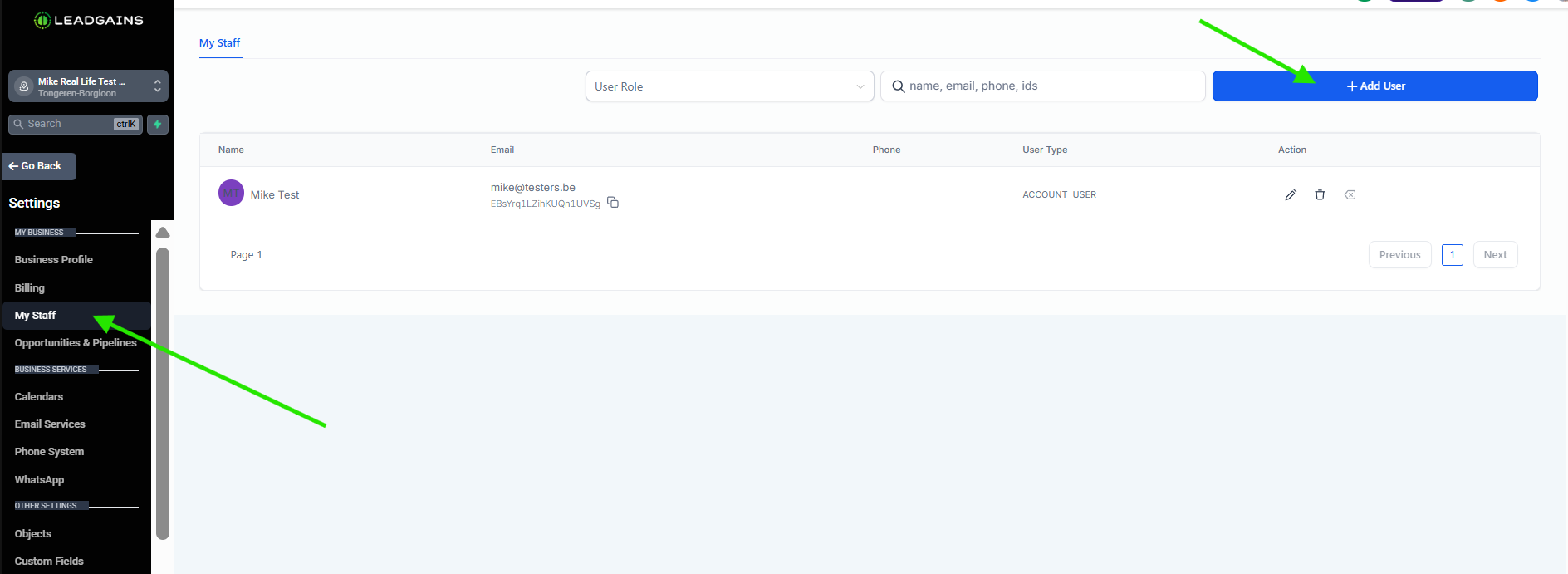
Step 1 - Open Settings > My Staff
Open directly My Staff in app.ldgns.be, or in Leadgains go to Settings or Settings and then open MyStaff. From this page you start a new user or open an existing employee to adjust data, rights and other settings.
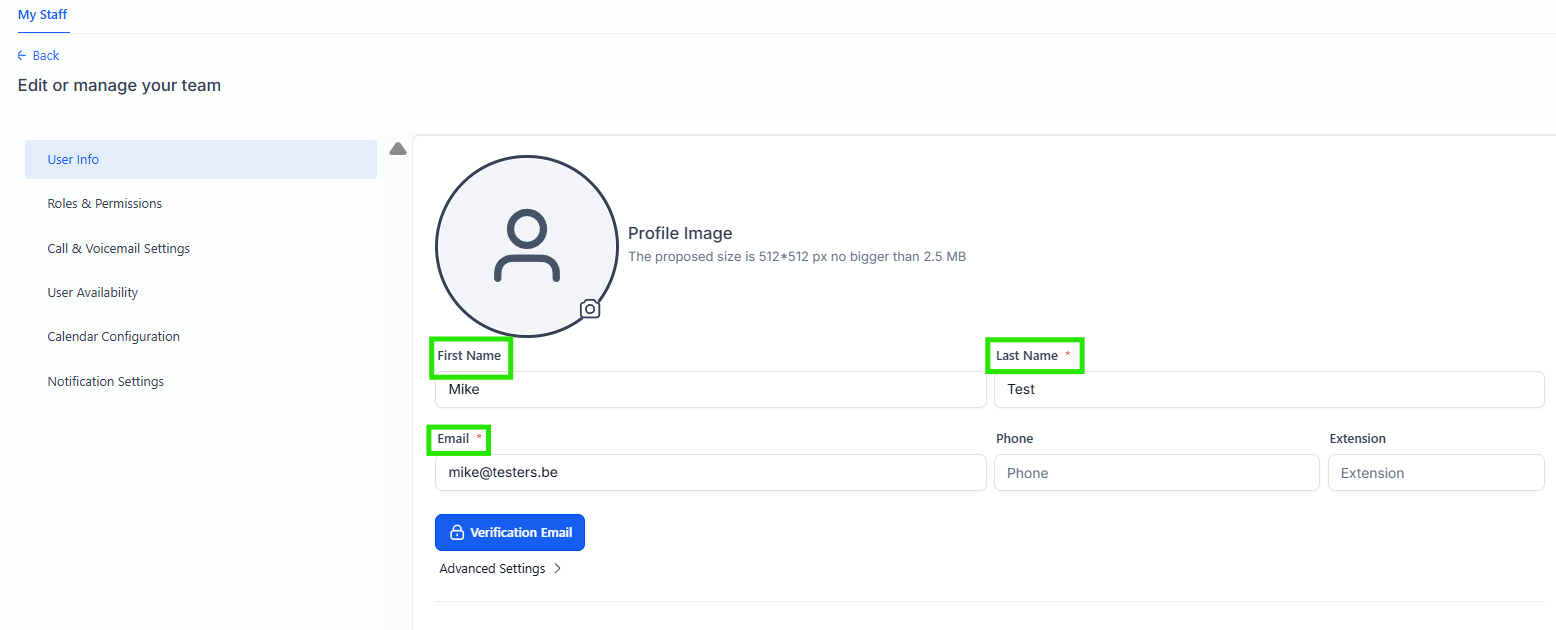
Step 2 - Fill in the user info
Refill User Info at least FirstName, Last Name and Email in. A phone number and extension are optional. You can also add a profile photo and later link a calendar or email signature.
Then click Next or continue to the permissions, depending on how your screen shows this flow.
Step 3 - Choose the role and set permissions
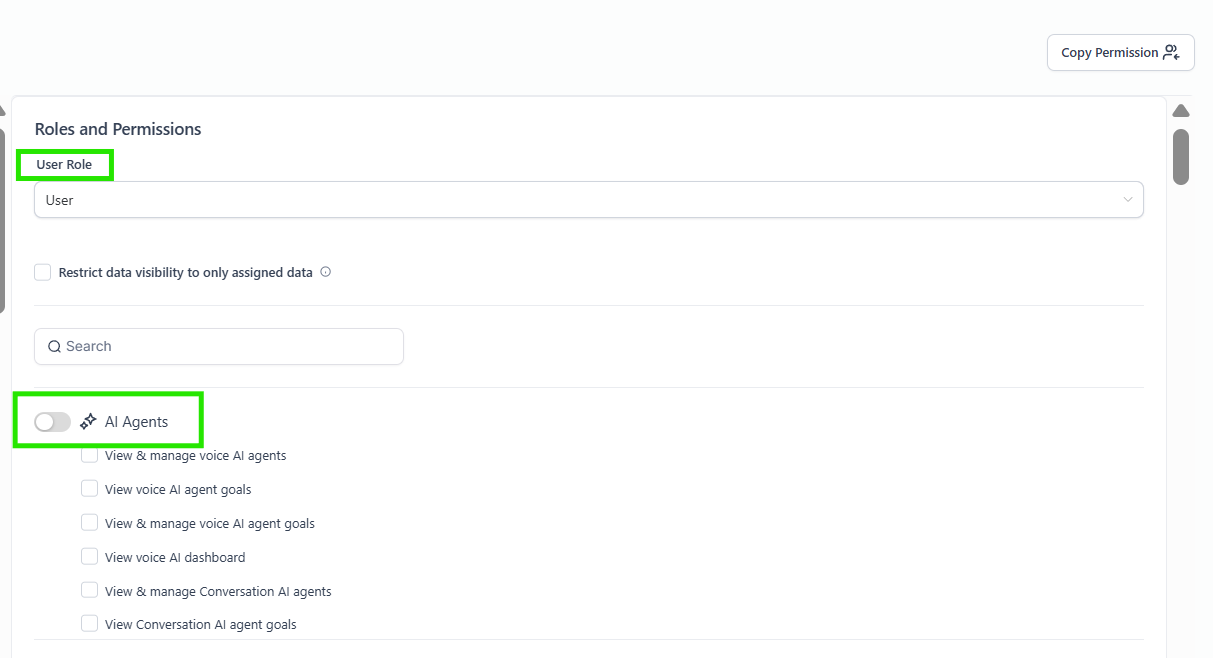
Open Roles & Permissions and choose the right one first User Role. Admin gives more rights than User, so only choose admin when that employee actually needs more management rights.
Then use the search bar and switches to open only the necessary modules. You can manage permissions for, among other things Search, AI Agents, Account Settings, Account Tools, AI Studio, Automation, Blogs, Calendars, Contacts, Conversations, Forms, Funnels, Integrations, Marketing, Memberships, Opportunities, Orders, Payments, Products, Quizzes, Reputations, Subscriptions, Surveys, Taxes, Transactions and WordPress.
Do you want to give a new employee exactly the same rights as someone else? Then use Copy Permissions once you already have one properly configured user. This way you copy the entire permissions configuration to the new user in one go.
Step 4 - Save the user and manage basic actions
Click Save to create the user. Afterwards you can reopen an existing user to adjust data or permissions.
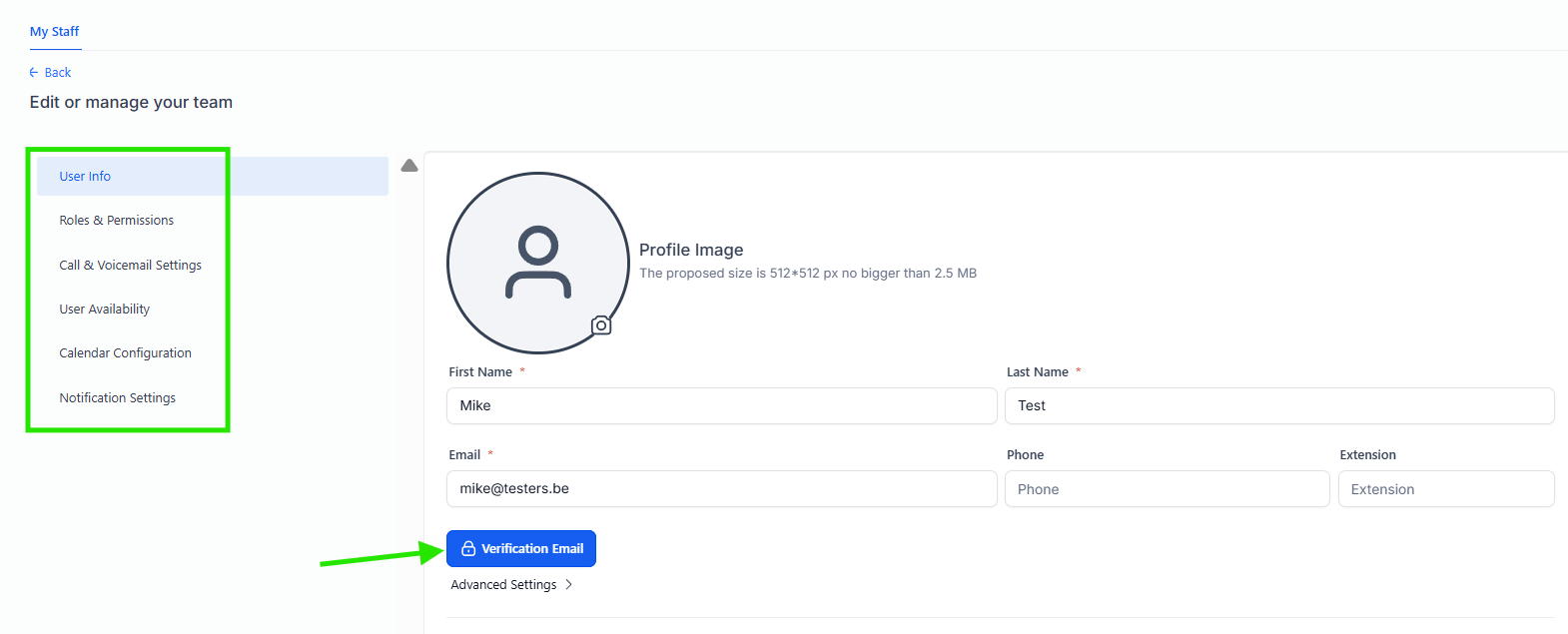
If the employee has not received the verification email, you can resend it via Verification Email. You can also change the password in the same user settings. If you want to adjust the user, open the pencil icon. If the user is no longer needed, you can delete him via Delete.
Step 5 - Optional: Complete the advanced settings
This step is optional and not required to create an employee. Only use these advanced settings if you want to complete additional tasks per user:
- Call & Voicemail Settings: Assign your own number and determine phone-related settings.
- User Availability: Set when this user is available.
- Calendar Configuration: link your own calendar when each employee works with a separate calendar.
- Notification Settings: determine which notifications the user receives and whether they should be received in the app, via email or via SMS.
Common problems
You have at least FirstName, Last Name and Email necessary. Phone number, extension, calendar and other extras are optional.
Choose Admin only for people who really need broader management rights. For most employees it is User sufficient, supplemented with only the modules they use effectively.
Yes. Use Copy Permissions as soon as a correctly configured user already exists. This way you copy his permissions to the new employee and you don't have to check everything manually again.
Re-enter the user MyStaff and click Verification Email to resend the email. If necessary, you can also reset or change the password there.
There you manage the employee's personal settings: accessibility for calls, working hours, calendar link and how notifications should be received.