
Conversations
Conversations: Find and filter conversations
Use this SOP to quickly find a contact or conversation, choose the right inbox, temporarily mark a conversation and neatly process unread messages.
Brief overview
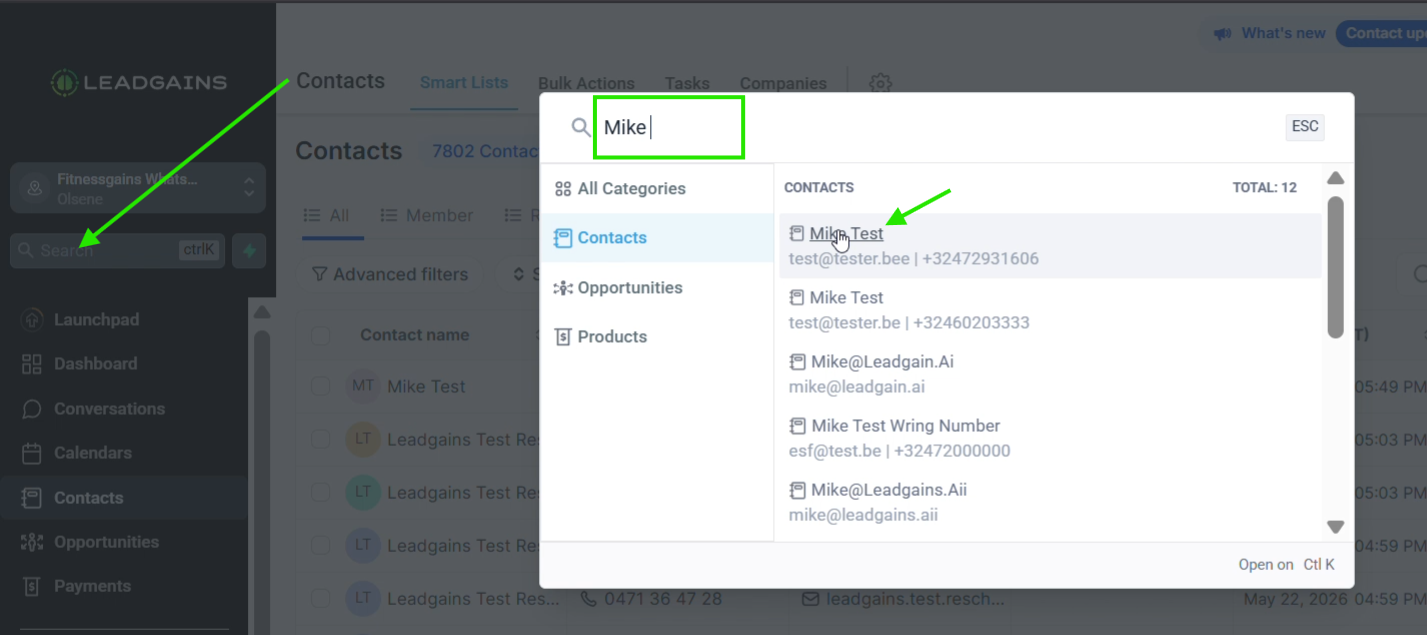
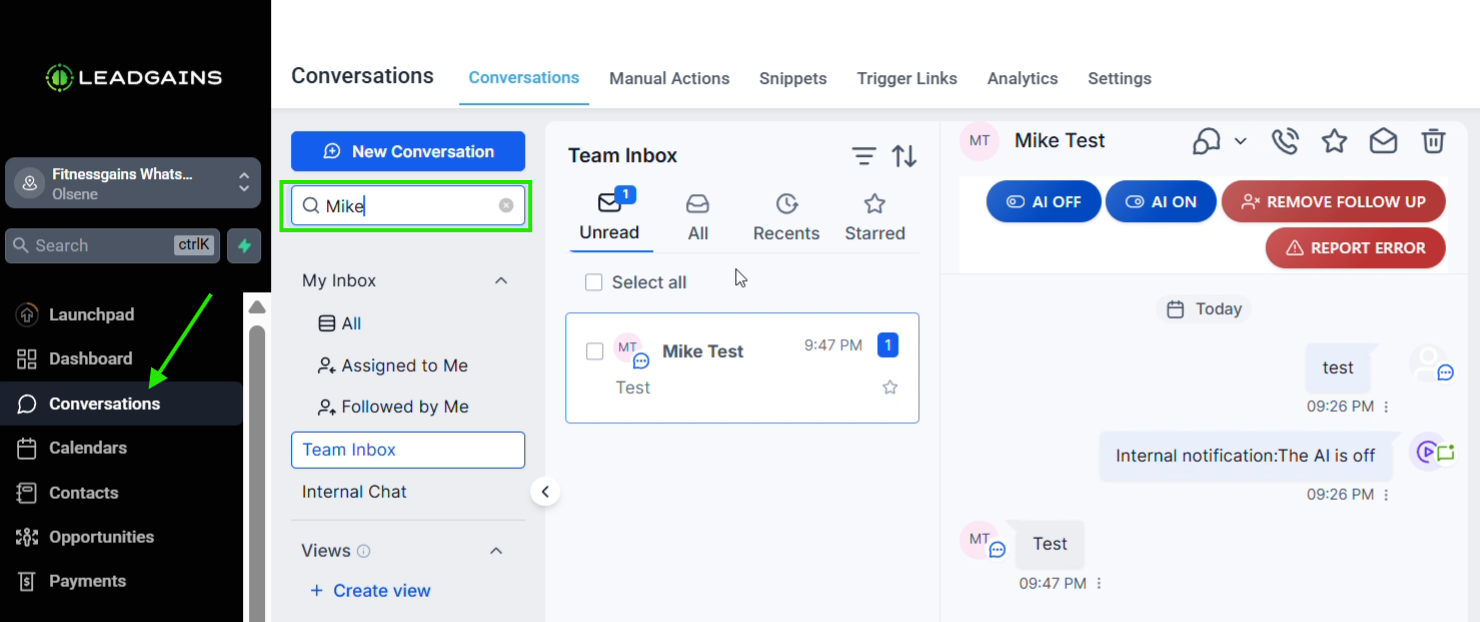
You can find a person in two ways: via the general search bar on the left in Leadgains or directly via Conversations into app.ldgns.be. The general search bar opens the contact form; the search bar in Conversations searches within the conversations.
In the Team Inbox you use Unread, All, Recents and Starred to show the right conversations. With the star you mark a conversation for later, with the envelope icon you mark it as read and with the phone icon you can call the contact.
Video explanation
View the walkthrough if you want to see the search function, inbox filters and quick actions in the screen.
This video is in Dutch. Click the gear icon in the video player, turn on Closed Captions and choose English under Caption Language.
How to change subtitle languageStep-by-step plan
Step 1 - Search for the contact using the general search bar
Use the search bar on the left in Leadgains when you want to quickly go to a contact form. Type the name, check the correct result by name, email address or telephone number and click on the contact.
Step 2 - Find the conversation in Conversations
Go to Conversations and type the name in the search bar above the inbox. Open the conversation in the Team Inbox when the result appears.
Step 3 - Choose the correct inbox view
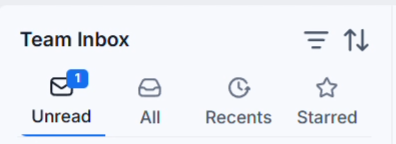
Use Unread for unread incoming comments, All for all conversations, Recents for recent interaction and Starred for conversations that you have marked as favorites.
| Inbox | When to use |
|---|---|
| Unread | For messages that people have sent to us and that we have not yet read. |
| All | For all conversations in the account, even after they have been read. |
| Recents | For conversations where there has been recent back-and-forth traffic. |
| Starred | For conversations that you want to temporarily save and come back to later. |
Step 4 - Use the quick actions at the top of the conversation
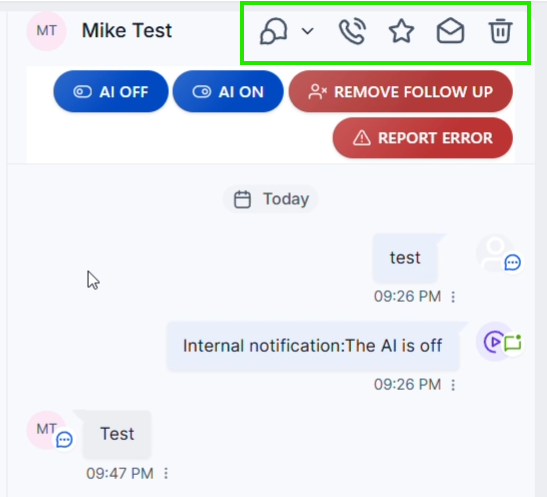
There are quick action buttons at the top of each conversation. Use those buttons to filter the conversation, call the contact, mark the conversation as a favorite, process it as read, or delete the conversation.
| Button | Use |
|---|---|
| Filter / conversation view | Shows or hides certain post types or channels in the timeline. Open the filter again when you no longer see a message or internal notification. |
| Call | Start a conversation with the contact via the phone icon. |
| Favorite | Continue the conversation Starred, so you can easily find it later. Click on the star again to turn this off again. |
| Read | Marks the conversation as read. It then disappears Unread, but remains available via All, Recents or the search function. |
| Delete | Deletes the conversation via the trash can icon. Only use this when the conversation really needs to be left. |
Common problems
Check spelling, use email address or telephone number if necessary and check whether you are working in the correct account.
The conversation has probably already been read or processed. Find it again via All, Recents or the search bar in Conversations.
Check the timeline filters. Enable all message types again if you want to see the complete history.
The star has probably been reset or the conversation is over Remove from favorites removed from favorites.
This is normal: the conversation is then marked as read and disappears Unread. It remains available via All and usually also via Recents.